

Session Management
Claude Code session management: /rename sessions, /branch conversations, /color windows, CLI session tools, and remote control
/rename: Name Your Session
/rename my-auth-refactor
Give your current session a name. The benefit is that in the interactive session picker (claude --resume), named sessions can be selected and restored directly without pressing Enter to confirm. You can also launch directly from the terminal with claude --resume my-auth-refactor.
In the picker, just start typing to search and filter. It also supports these keyboard shortcuts: Ctrl+V to preview a session, Ctrl+R to rename, Ctrl+A to toggle showing all projects, and Ctrl+B to filter by branch.
/branch: Branch Your Conversation

Just like git branches, /branch creates a fork at the current point in the conversation. You can try different approaches in the fork without affecting the original conversation. If things don't work out, just go back to the original branch and continue.
/color: Color Your Window
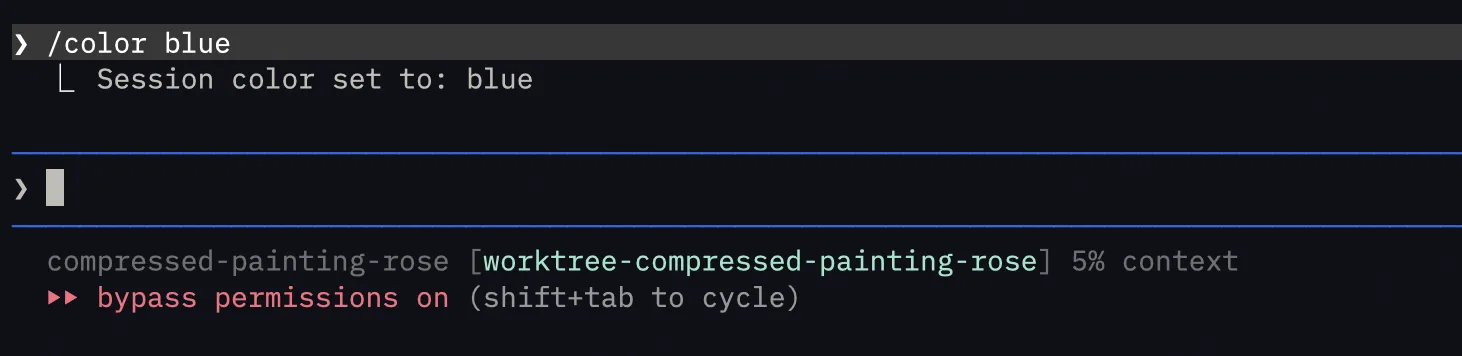
Set a color for the current session's prompt bar. Supports red, blue, green, yellow, purple, orange, pink, and cyan.
CLI Session Management Toolkit
# Resume the most recent session in the current directory
claude --continue

# Open the session picker, or resume by name
claude --resume
claude --resume my-auth-refactor

# Name the session at launch
claude -n "auth-refactor"

# Fork the last session (preserve context, create new branch)
claude -c --fork-session

# Resume a session associated with a specific PR
claude --from-pr 123

# Launch in an isolated git worktree
claude -w
Claude Code sessions are automatically saved (no need for Ctrl+S), so you can resume your last session with --continue every time you open a terminal.
claude --remote: Continue Across Devices
claude --remote "your task description"Start a web session that you can continue on claude.ai or the mobile app.
/remote-control: Control Local Claude from Your Phone
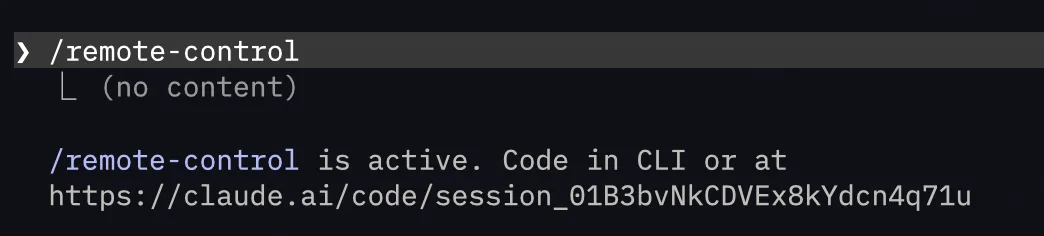
Type /remote-control in Claude Code on your computer, and it will generate a connection code. Then enter this code in the Claude App on your phone to remotely control the local Claude Code session — give instructions to Claude on your computer from your phone.
Comments
Thinking & Model Control
Claude Code thinking and model control: trigger thinking depth with think/ultrathink keywords, /effort command, subagents parallelism, and opusplan model strategy
Context Management
Claude Code context management: /compact with arguments, Compact Instructions, preventing token budget abandonment, Handoff protocol, MCP tool lazy loading