
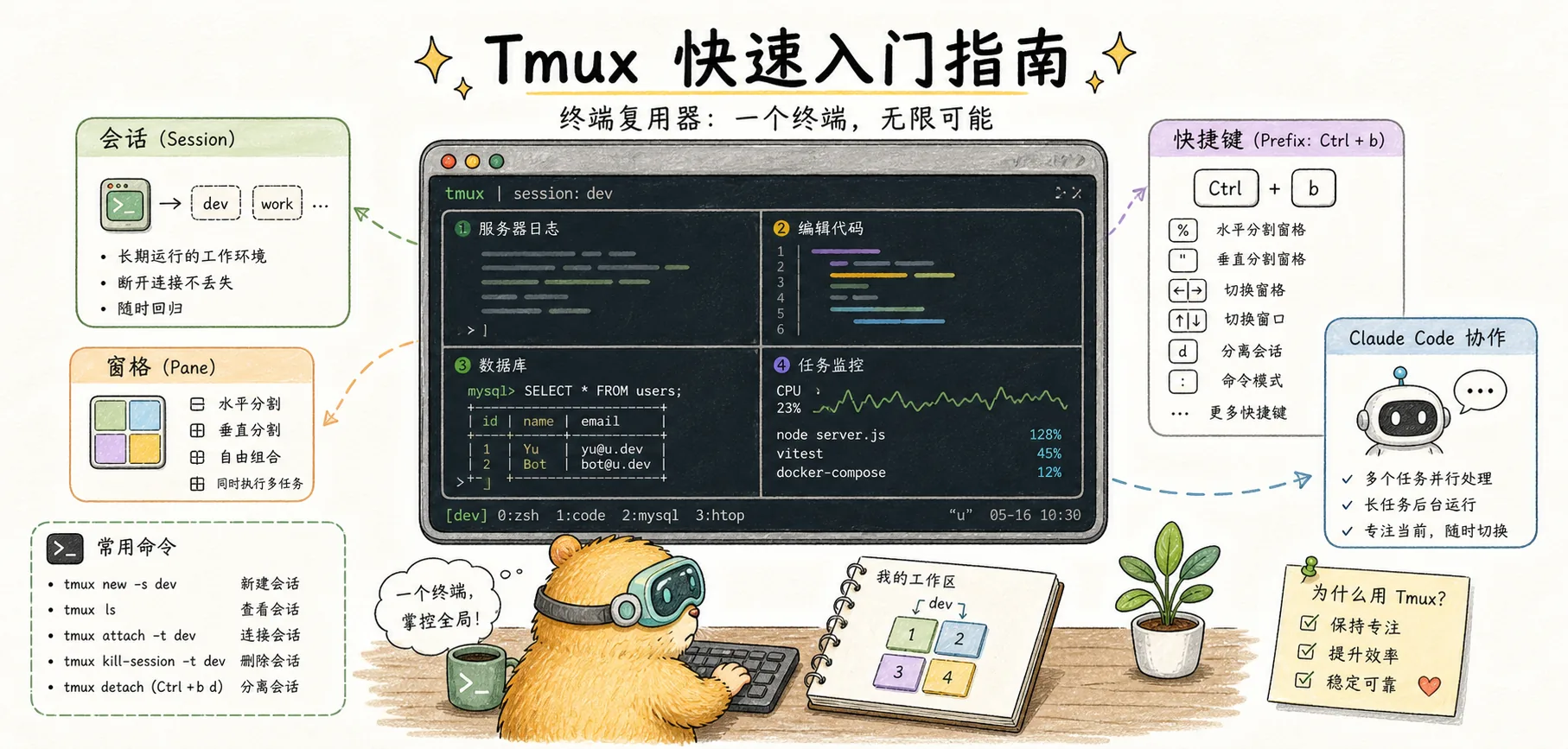
Tmux Quick Start Guide
Learn Tmux terminal multiplexer from scratch - core concepts, essential commands, and deep integration with Claude Code
Introduction
Adoption of tools like Tmux has surged, largely due to the agent team workflows found in command-line coding agent products like Claude Code.
If you've used Claude Code's Agent Teams or want to run multiple Claude instances simultaneously, Tmux is practically essential. It lets you run multiple sessions within a single terminal window, keeps sessions alive in the background even after you close the terminal, and allows Claude to automatically spawn and manage multiple Agents inside Tmux.
This tutorial is designed for Claude Code users, covering both Tmux fundamentals and key integration tips with Claude Code.
Understanding Tmux
A terminal multiplexer that allows you to create and manage multiple terminal sessions within a single terminal window. Its core feature is session persistence — sessions continue running even after disconnection, and you can resume right where you left off when you reconnect.
The three core concepts of Tmux:
┌─────────────────────────────────────────────────────────┐
│                    Session                               │
│  ┌─────────────────────────────────────────────────────┐│
│  │                 Window                               ││
│  │  ┌──────────────┐  ┌──────────────┐  ┌───────────┐ ││
│  │  │   Pane 1     │  │   Pane 2     │  │  Pane 3   │ ││
│  │  │  (Claude 1)  │  │  (Claude 2)  │  │  (Logs)   │ ││
│  │  │              │  │              │  │           │ ││
│  │  │              │  │              │  │           │ ││
│  │  └──────────────┘  └──────────────┘  └───────────┘ ││
│  └─────────────────────────────────────────────────────┘│
│  Window 1: Development    Window 2: Testing             │
└─────────────────────────────────────────────────────────┘| Concept | Analogy | Description |
|---|---|---|
| Session | Workspace | Top-level container that persists even after disconnection |
| Window | Browser tab | A session can contain multiple windows |
| Pane | Split screen | A window can be divided into multiple panes |
Installation & Basics
Installing Tmux
# macOS
brew install tmux

# Ubuntu/Debian/WSL
sudo apt-get install tmux

# CentOS/RHEL
sudo yum install tmux
Verify the installation:
tmux -V
# Output example: tmux 3.6a
The Prefix Key
All Tmux commands start with the prefix key, which defaults to Ctrl+B.
How to enter a command:
- Press
Ctrl+B(hold it down) - Release, then press the command key
For example, to split a window: Ctrl+B then press %
Command Cheat Sheet
Session Management
| Command | Description |
|---|---|
tmux | Create a new session |
tmux new -s name | Create a named session |
tmux ls | List all sessions |
tmux attach -t name | Attach to a session |
tmux kill-session -t name | Kill a session |
Ctrl+B d | Detach current session (runs in background) |
Window Management
| Shortcut | Description |
|---|---|
Ctrl+B c | Create a new window |
Ctrl+B n | Next window |
Ctrl+B p | Previous window |
Ctrl+B 0-9 | Switch to a specific window |
Ctrl+B , | Rename current window |
Ctrl+B & | Close current window |
Pane Management
| Shortcut | Description |
|---|---|
Ctrl+B % | Vertical split (left/right) |
Ctrl+B " | Horizontal split (top/bottom) |
Ctrl+B Arrow keys | Move between panes |
Ctrl+B x | Close current pane |
Ctrl+B z | Maximize/restore pane |
Ctrl+B { | Move pane left |
Ctrl+B } | Move pane right |
Other Useful Shortcuts
| Shortcut | Description |
|---|---|
Ctrl+B [ | Enter copy mode (scrollable) |
q | Exit copy mode |
Ctrl+B ? | Show all shortcuts |
Integration with Claude Code
Why Claude Code Needs Tmux
- Agent Teams split-pane mode: Each Teammate is displayed in its own pane
- Background execution: Tasks continue running even after closing the terminal
- Session persistence: Full context is restored after reconnecting
- Multi-instance management: Run multiple Claude sessions simultaneously
Basic Usage: Running Claude in the Background
# Start Claude in tmux
tmux new -s claude-work
claude

# Detach the session (Claude keeps running)
# Ctrl+B d

# Reconnect later
tmux attach -t claude-work
Using the --tmux Flag
Claude Code natively supports Tmux integration:
# Start Claude in a new tmux session
claude --tmux

# Use with worktree
claude -w feature-auth --tmux
This automatically:
- Creates a new tmux session
- Starts Claude Code inside it
- Names the session
claude-{random-ID}
Agent Teams Tmux Mode
Agent Teams can use split-pane display mode, with each Teammate running in its own pane:
// settings.json
{
  "teammateMode": "tmux"
}
Or via the command line:
claude --teammate-mode tmuxResult:
┌─────────────────────────────────────────────────────────┐
│                    Team Lead                             │
├─────────────────┬─────────────────┬─────────────────────┤
│   Teammate 1    │   Teammate 2    │    Teammate 3       │
│   Security      │   Performance   │    Testing          │
│                 │                 │                     │
└─────────────────┴─────────────────┴─────────────────────┘
Practical Configuration
Recommended ~/.tmux.conf
Create or edit ~/.tmux.conf:
# Use Ctrl+A as prefix key (easier to reach)
set -g prefix C-a
unbind C-b
bind C-a send-prefix

# Enable mouse support
set -g mouse on

# Increase history buffer (Claude generates lots of output)
set -g history-limit 50000

# Vim-style pane navigation
bind h select-pane -L
bind j select-pane -D
bind k select-pane -U
bind l select-pane -R

# More intuitive split shortcuts
bind | split-window -h
bind - split-window -v

# Quick config reload
bind r source-file ~/.tmux.conf \; display "Config reloaded!"

# 256 color support
set -g default-terminal "screen-256color"
set -ga terminal-overrides ",*256col*:Tc"

# Start window numbering at 1 (0 is too far away)
set -g base-index 1
setw -g pane-base-index 1

# Status bar optimization
set -g status-position bottom
set -g status-left-length 40
set -g status-right-length 60
Reload configuration:
tmux source-file ~/.tmux.confClaude Code-Specific Configuration
Optimized configuration for Claude Code:
# Claude session popup shortcut
bind -r y run-shell '\
  SESSION="claude-$(echo #{pane_current_path} | md5sum | cut -c1-8)"; \
  tmux has-session -t "$SESSION" 2>/dev/null || \
  tmux new-session -d -s "$SESSION" -c "#{pane_current_path}" "claude"; \
  tmux display-popup -w80% -h80% -E "tmux attach-session -t $SESSION"'
What this configuration does:
- Press
Ctrl+A yto open a Claude popup - Each directory gets its own Claude session
- The session keeps running after closing the popup
- Reopening restores the previous conversation
Common Workflows
Workflow 1: Parallel Multi-Project
# Create a separate session for each project
tmux new -s project-a
# Start Claude inside it
claude -w feature-x

# Detach, then create another session
# Ctrl+B d
tmux new -s project-b
claude -w bugfix-y

# Switch between sessions
tmux switch -t project-a
tmux switch -t project-b

# Or list all sessions to choose from
# Ctrl+B s
Workflow 2: Development Dashboard
Create a multi-pane development environment:
# Create session
tmux new -s dev

# Split into three panes
# Ctrl+B % (vertical split)
# Ctrl+B " (horizontal split on the right side)

# Pane layout:
# ┌───────────┬───────────┐
# │  Claude   │   Logs    │
# │           ├───────────┤
# │           │   Tests   │
# └───────────┴───────────┘

# Run Claude in the first pane
claude

# Switch to the second pane (Ctrl+B Right Arrow)
tail -f logs/app.log

# Switch to the third pane
npm test -- --watch
Workflow 3: Remote Development
Tmux's most powerful feature is session persistence, making it ideal for SSH remote development:
# Connect to the remote server
ssh user@server

# Create a tmux session
tmux new -s remote-claude

# Start Claude
claude

# Disconnect from SSH (Claude keeps running)
# Ctrl+B d
exit

# Reconnect later
ssh user@server
tmux attach -t remote-claude
# Claude session is fully restored
Workflow 4: Agent Teams Monitoring
Use tmux to monitor all Teammates in Agent Teams:
# Start Claude with tmux mode
claude --teammate-mode tmux

# Create an Agent Team
# "Create an agent team to review code..."

# The screen automatically splits, one pane per Teammate
# Click on different panes to interact with the corresponding Teammate
Troubleshooting
Common Issues
| Issue | Solution |
|---|---|
| Colors not displaying correctly | Ensure TERM=xterm-256color |
| Mouse not working | Add set -g mouse on to config |
| Copy/paste issues | Use Enter to copy in copy mode |
| Session disappeared | Check tmux ls; system may have restarted |
Cleaning Up Orphaned Sessions
Claude Code sometimes leaves behind uncleaned tmux sessions:
# List all sessions
tmux ls

# Kill a specific session
tmux kill-session -t session-name

# Kill all sessions (use with caution!)
tmux kill-server
iTerm2 Users
If you're using iTerm2 on macOS, you can use its native integration:
# Use iTerm2's tmux integration mode
tmux -CC

# Or with Claude Code
claude --teammate-mode tmux
iTerm2 automatically converts tmux panes into native tabs and split views.
My Personal Tips
When to Use Tmux
| Scenario | Tmux Needed? |
|---|---|
| Simple one-off Claude conversation | Not needed |
| Long-running tasks | Yes |
| Agent Teams | Highly recommended |
| Remote development | Essential |
| Parallel multi-project work | Recommended |
Minimal Setup
If you don't want to fuss with configuration, just remember these commands:
# Create a session
tmux new -s work

# Detach (runs in background)
Ctrl+B d

# Reattach
tmux attach -t work

# Split panes
Ctrl+B %    # Left/right split
Ctrl+B "    # Top/bottom split

# Switch panes
Ctrl+B Arrow keys
Best Combinations with Claude Code
-
Worktree + Tmux: Each worktree in its own tmux session
claude -w feature-auth --tmux -
Agent Teams + Tmux: Visual management of all Teammates
claude --teammate-mode tmux -
Long tasks + Detach: Start a task, detach, come back later to check
# Start
tmux new -s migration
claude
# "Run the database migration..."
# Ctrl+B d

# Hours later
tmux attach -t migration
Final Thoughts
Tmux is a key tool for using Claude Code efficiently, especially in these scenarios:
| Takeaway | Description |
|---|---|
| Persistence | Sessions survive disconnections |
| Parallelism | Manage multiple Claude instances simultaneously |
| Visualization | Split-pane display for Agent Teams |
Three core commands to get started:
tmux new -s nameto create a sessionCtrl+B dto detach a sessiontmux attach -t nameto reconnect
Related Reading:
- Claude Agent Teams Complete Guide — Agent Teams requires Tmux for split-pane mode
- Claude Worktree Complete Guide — Worktrees can run in the background with Tmux
References:
- Tmux Wiki - Getting Started
- A Quick and Easy Guide to tmux
- Red Hat - A beginner's guide to tmux
- How to run Claude Code in a Tmux popup window
- Claude Code + tmux: The Ultimate Terminal Workflow
Video Tutorials:
- Tmux Basics Tutorial — Tmux basics for beginners
- Tmux + Claude Code Workflow — Integration workflow with Claude Code
- Advanced Tmux Configuration — Advanced configuration tips