
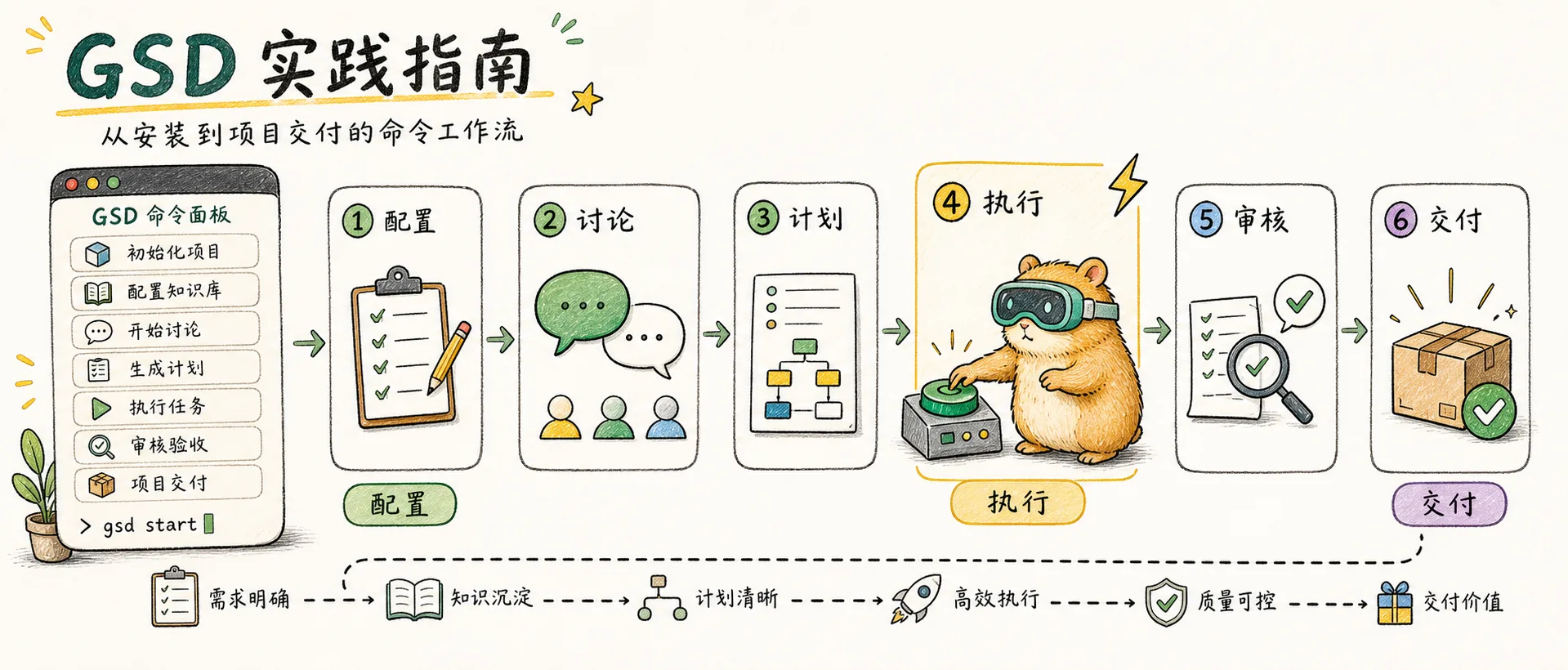
Practical Guide
Complete GSD command reference, configuration details, workflow walkthroughs, and FAQ — a hands-on manual from installation to project delivery
Introduction
In the previous article, we explored GSD's core principles — context engineering, subagent orchestration, goal-backward planning, and atomic commits. These concepts sound elegant, but there are many operational details between "understanding the theory" and "actually delivering a project."
In this article, we get hands-on. You'll learn GSD's complete command system, configuration options, output file structure, and how to use it to deliver a complete feature from scratch.
Installation & Setup
Installation
npx get-shit-done-cc@latestThe installer will prompt you to choose:
- Runtime — Claude Code, OpenCode, Gemini CLI, or all
- Scope — Global (all projects) or local (current project)
After installation, type /gsd:help in your runtime to verify.
Recommended: Skip Permissions Mode
GSD is designed for frictionless automation. The recommended way to run Claude Code:
claude --dangerously-skip-permissionsIf you'd rather not use this flag, you can configure fine-grained permissions in .claude/settings.json.
Updates
/gsd:updateGSD updates are very frequent (TÂCHES pushes 15–20 updates almost every day). Run this command regularly to stay on the latest version.
Complete Command Reference
All GSD interactions use slash commands prefixed with /gsd:. Here's the complete reference organized by function.
Core Workflow Commands
These five commands form GSD's main loop, used in sequence.
| Command | Description |
|---|---|
/gsd:new-project | Initialize a project. The system asks questions until it understands your idea, then researches, extracts requirements, and creates a roadmap |
/gsd:discuss-phase [N] | Discuss gray areas for phase N. Captures your implementation preferences to guide planning |
/gsd:plan-phase [N] | Create atomic task plans for phase N. Includes research, planning, and verification sub-steps |
/gsd:execute-phase <N> | Execute phase N. Subagents implement tasks in parallel, each with an independent commit |
/gsd:verify-work [N] | Verify deliverables for phase N. Guides you through confirmation, auto-diagnoses issues |
[N]indicates an optional parameter — the system auto-detects the current phase if omitted.<N>indicates a required parameter.
Milestone Management
| Command | Description |
|---|---|
/gsd:audit-milestone | Audit current milestone progress — checks all phase statuses, identifies incomplete items |
/gsd:complete-milestone | Archive current milestone, tag version, prepare for the next cycle |
/gsd:new-milestone [name] | Create a new milestone. Optionally provide a name; the system plans based on completed work |
Phase Management
| Command | Description |
|---|---|
/gsd:add-phase | Add a new phase at the end of the roadmap |
/gsd:insert-phase [N] | Insert an urgent phase at position N; subsequent phases auto-renumber |
/gsd:remove-phase [N] | Remove a phase and cascade-delete all related output files |
/gsd:list-phase-assumptions [N] | List all assumptions and dependencies for a phase, helping identify potential risks |
Quick Mode & Tools
| Command | Description |
|---|---|
/gsd:quick [--full] | Quick mode — skips research, plan checking, and verification. Good for small tasks. --full enables full safeguards |
/gsd:debug [desc] | Launch an isolated debug subagent. Optionally describe the issue; the system hypothesizes → gathers evidence → resolves |
/gsd:add-todo [desc] | Capture an idea to the to-do list without modifying the roadmap |
/gsd:check-todos | View the current to-do list |
/gsd:map-codebase | Analyze an existing codebase — tech stack, architecture, conventions, potential issues |
Session & Configuration Management
| Command | Description |
|---|---|
/gsd:pause-work | Pause work. Saves current state to STATE.md for easy resumption |
/gsd:resume-work | Resume work. Reads last state from STATE.md and continues where you left off |
/gsd:progress | View overall project progress — completed phases, current position, pending items |
/gsd:help | Display all available commands with brief descriptions |
/gsd:settings | View and modify GSD configuration |
/gsd:set-profile | Switch model profiles (quality / balanced / budget) |
/gsd:update | Update GSD to the latest version |
Configuration Details
Model Profiles
GSD supports three model profiles, switchable via /gsd:set-profile:
| Profile | Planning | Execution | Verification | Best For |
|---|---|---|---|---|
| quality | Opus | Opus | Sonnet | Complex projects, critical features, first-time use |
| balanced (default) | Opus | Sonnet | Sonnet | Daily development, best balance for most scenarios |
| budget | Sonnet | Sonnet | Haiku | Simple features, budget-sensitive, rapid iteration |
Core Settings
View and modify via /gsd:settings:
| Setting | Default | Description |
|---|---|---|
mode | balanced | Model profile selection |
depth | standard | Research depth: quick / standard / deep |
git.branching_strategy | feature | Git branching: feature (per feature) / phase (per phase) / none |
Workflow Toggles
The following agents can be individually toggled to trade off between speed and quality:
| Toggle | Default | Description |
|---|---|---|
research | On | Whether to auto-research before planning |
plan_check | On | Whether to auto-verify after plan creation |
verifier | On | Whether to auto-verify after execution |
auto_advance | Off | Whether to auto-advance to the next phase after completion |
Disabling
researchandplan_checkcan significantly speed things up but may reduce planning quality. Consider disabling only after you're familiar with the project.
Output File Structure
All GSD state and output is stored in the .planning/ directory. Understanding this structure helps with debugging and manual intervention.
Project-Level Files
| File | Purpose | Created By |
|---|---|---|
PROJECT.md | Project vision and scope | new-project |
REQUIREMENTS.md | Versioned requirements with phase traceability | new-project |
ROADMAP.md | Phase planning and progress | new-project |
STATE.md | Current state — decisions, blockers, position | new-project, continuously updated |
Phase-Level Files
Each phase produces the following files (using Phase 1 as an example):
| File | Purpose | Created By |
|---|---|---|
01-CONTEXT.md | Decisions from the discuss phase | discuss-phase 1 |
01-RESEARCH.md | Research findings and technical investigation | plan-phase 1 |
01-01-PLAN.md | First atomic task plan | plan-phase 1 |
01-02-PLAN.md | Second atomic task plan | plan-phase 1 |
01-01-SUMMARY.md | Execution record for the first plan | execute-phase 1 |
01-02-SUMMARY.md | Execution record for the second plan | execute-phase 1 |
01-VERIFICATION.md | Automated verification results | execute-phase 1 |
01-UAT.md | User acceptance testing record | verify-work 1 |
Directory Structure Example
.planning/
├── PROJECT.md
├── REQUIREMENTS.md
├── ROADMAP.md
├── STATE.md
├── research/
│   ├── tech-stack.md
│   ├── features.md
│   ├── architecture.md
│   └── pitfalls.md
├── 01-CONTEXT.md
├── 01-RESEARCH.md
├── 01-01-PLAN.md
├── 01-02-PLAN.md
├── 01-01-SUMMARY.md
├── 01-02-SUMMARY.md
├── 01-VERIFICATION.md
├── 01-UAT.md
├── 02-CONTEXT.md
├── 02-RESEARCH.md
├── 02-01-PLAN.md
│   ...
└── todos.md
Workflow Walkthrough
Let's walk through a complete workflow using "add a comment system to a blog" as an example.
Step 1: Initialize the Project
/gsd:new-projectThe system will start asking questions:
> What do you want to build?
"I want to add a comment system to my Next.js blog. Support both
 anonymous and authenticated comments, Markdown rendering, and an
 admin panel. Tech stack: Prisma + PostgreSQL."
The more detailed your description, the fewer follow-up questions. TÂCHES recommends preparing a rough vision document describing what you want — no need for technical details.
After completion, the system produces four files and asks you to approve the roadmap. Once approved, building begins.
Already have a codebase? Run
/gsd:map-codebasefirst. The system will analyze your existing architecture and conventions, thennew-projectcan plan based on your existing code.
Step 2: Discuss Phase
/gsd:discuss-phase 1The system identifies gray areas and asks questions one by one:
> Comment nesting: support multi-level nesting or single-level replies only?
> Anonymous comments: require CAPTCHA or direct submission?
> Admin panel: need bulk operations or one-by-one moderation?
Every decision here directly affects planning quality. If unsure, let the system use defaults — but deeper discussion significantly reduces rework during execution.
Step 3: Plan Phase
/gsd:plan-phase 1The system will:
- Research how to implement a comment system with Prisma + PostgreSQL
- Create 2–3 atomic task plans (e.g., data model, API routes, frontend components)
- Auto-verify that the plans cover all requirements
Each plan is small enough to complete in a single fresh context window.
Step 4: Execute Phase
/gsd:execute-phase 1The system begins wave execution:
- Wave 1 (no dependencies): Database schema, Prisma models — executed in parallel
- Wave 2 (depends on Wave 1): API routes, comment CRUD — executed in parallel
- Wave 3 (depends on Wave 2): Frontend comment component — executed independently
Each task runs in a fresh 200k token context and gets an independent git commit.
Step 5: Verify Phase
/gsd:verify-work 1The system guides you through confirmation:
> ✅ Database tables created
> ✅ API routes return correct status codes
> ❓ Can you see the comment input box below blog posts? [yes/no/describe issue]
> ❓ Does the page update in real-time after submitting a comment? [yes/no/describe issue]
If any checks fail, the system auto-diagnoses and creates a fix plan. Run /gsd:execute-phase 1 again to execute the fix.
Common Scenarios
Insert an urgent phase: Requirements changed — need to insert new work before the current phase.
/gsd:insert-phase 2Subsequent phases auto-renumber (original Phase 2 becomes Phase 3, and so on).
Pause and resume: Need to interrupt work to handle something else.
/gsd:pause-work    # Save current state
# ... handle other things ...
/gsd:resume-work   # Resume from where you left off
Roll back unsatisfactory results:
git reset --hard HEAD~3 # Return to pre-execution state/gsd:remove-phase 2 # Cascade-delete all output files for this phaseTÂCHES demonstrated this multiple times in his livestream — if you don't like it, roll back. Clean and decisive.
Debugging Workflow
When verification finds issues, or you encounter bugs during development, GSD provides a dedicated debugging workflow.
/gsd:debug Page doesn't update in real-time after comment submissionThe system launches an isolated debug subagent with the following workflow:
- Hypothesize — Generate multiple possible root cause hypotheses based on the problem description
- Gather evidence — Verify hypotheses one by one, checking code, logs, network requests
- Resolve — After pinpointing the root cause, create a fix plan
Key features:
- Context isolation: The debug agent has its own context window and won't pollute your main development context
- Documentation: Creates independent debug documents tracking the entire investigation
- Fix plan: Produces a directly executable fix plan after diagnosis
This is far more efficient than debugging in the main context — debug information doesn't accumulate in your main window.
Practical Tips
Drawing from TÂCHES's livestreams and Chase AI's hands-on experience, here are some practical recommendations.
Slow Down to Speed Up
TÂCHES admits that when he first started using GSD, his mindset was "go go go" — but he later discovered that spending more time in the research and discuss phases actually reduced rework during execution. Newer versions of GSD added research-project and define-requirements steps specifically to get the direction right before writing any code.
"I was definitely when I first started doing things with GSD, I was very much like move fast, move fast, move fast. But I'm just finding that taking these extra steps... I think you're going to really really love to see the results."
—— TÂCHES
Clear Context Between Phases
TÂCHES's habit is to run clear between every phase to keep the main context lean. He uses the Warp terminal, with each window full-screened (Command+Shift+Enter), executing the current phase in one window while researching the next phase in another.
The Token Cost Tradeoff
GSD's subagent approach does consume more tokens than using Claude Code directly. But Chase AI makes a compelling argument: "plan twice, prompt once" is cheaper in the long run than "prompt once, then patch and patch." Doing it right in fresh context is far more efficient than repeatedly fixing things in a degraded one.
Handling Unsatisfactory Results
If you're unhappy with a phase's results, you can git reset --hard and then use /gsd:remove-phase to cascade-delete all output files for that phase. TÂCHES demonstrated this live — he didn't like a particular visual effect, so he rolled back to the last satisfactory state, clean and decisive.
The To-Do System
/gsd:add-todo lets you capture ideas to a to-do list at any time without modifying the roadmap. These ideas can be pulled up during /gsd:discuss-milestone as input for the next milestone. TÂCHES's strategy is "build the features first, polish the UI in milestone 2."
FAQ & Best Practices
Best Practices
Provide detailed initial descriptions. The quality of /gsd:new-project depends on the quality of your input. Prepare a rough vision document — describe goals, users, core features, known constraints. The more precise your description, the fewer follow-up questions and the better the planning.
Clear context between phases. After completing each phase, run clear or /compact to keep the main context window lean. TÂCHES's habit is to keep the main context at 30–40%.
Test with Quick Mode first. For uncertain small features, use /gsd:quick to test the waters. If it works well, incorporate it into the formal roadmap.
Map existing codebases first. Before using GSD on an existing codebase, run /gsd:map-codebase. The system will analyze your tech stack, architecture, and conventions, making subsequent planning more aligned with existing code.
FAQ
Q: What runtimes does GSD support?
A: Claude Code, OpenCode, and Gemini CLI. You can choose one or all during installation.
Q: What's the difference between Quick Mode and full mode?
A: Quick Mode provides GSD's basic safeguards (atomic commits, state tracking) but skips research, plan checking, and verification. Ideal for bug fixes, small features, and config changes that don't need full planning.
Q: Can I pause mid-execution?
A: Yes. /gsd:pause-work saves the current state to STATE.md. Next time you run /gsd:resume-work, the system continues from where you left off.
Q: How do I control token costs?
A: Three approaches — (1) Switch to budget profile: /gsd:set-profile budget; (2) Disable research or plan_check agents; (3) Use /gsd:quick for simple tasks.
Q: Can GSD and Ralph be used together?
A: Yes. GSD and Ralph solve different problems — GSD handles planning and structured execution, Ralph handles autonomous loop execution. You can use GSD's new-project and plan-phase to generate a complete plan, then use Ralph loops to execute phases that don't require human intervention.
Q: What about multi-person collaboration?
A: The .planning/ directory can be committed to Git. Multiple people can run different phases and merge results via Git. However, avoid running the same phase simultaneously.
Summary
GSD's core value lies in hiding complexity in the system while keeping simplicity for the user. You only need a few commands — new-project, discuss-phase, plan-phase, execute-phase, verify-work — while the system handles all context management, subagent orchestration, and quality verification behind the scenes.
From installation to delivery, GSD provides a clear path: describe what you want → discuss implementation details → generate atomic plans → execute in parallel → verify deliverables. Every step gives you the opportunity to intervene, and every step is documented.
This isn't "press one button and it's done" magic. It's a system that needs your participation but shoulders most of the cognitive load. As TÂCHES puts it: you're the high-level project manager, GSD is your execution team.
Further Reading:
- GSD Deep Dive — Core principles, workflows, and technical architecture
- Ralph Wiggum Deep Dive — Context Rot and the Ralph methodology
- snarktank/ralph Practice Guide — Ralph installation, PRD writing, and hands-on guide
- What is Spec-Driven Development — From Vibe Coding to spec-driven development
- Speckit Practice Guide — Speckit command reference and complete examples
GSD - Get Shit Done
A light-weight and powerful meta-prompting, context engineering and spec-driven development system for Claude Code, OpenCode, and Gemini CLI.