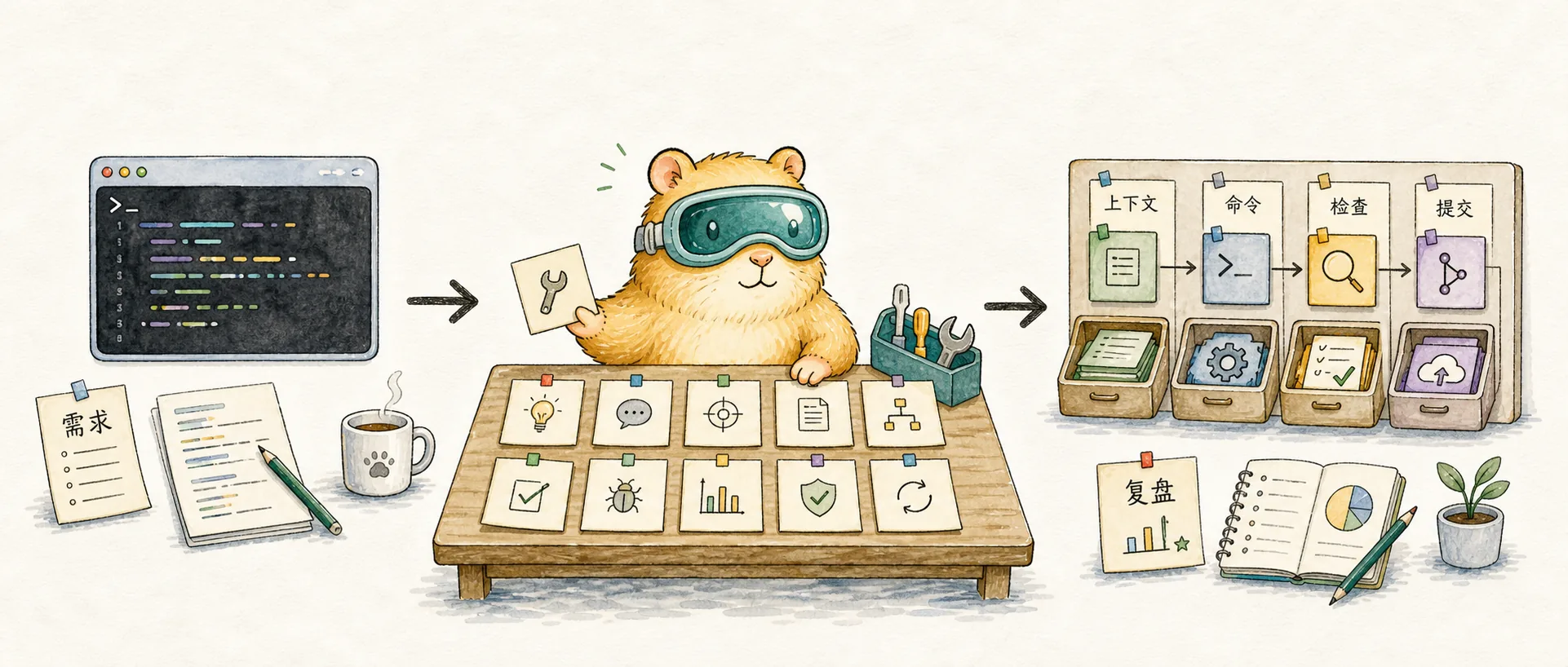
My Claude Code Best Practices
Sharing my experience with Claude Code — 10 core tips, slash command guide, and custom command configuration to boost your AI programming efficiency
After extensively using Claude Code for AI-assisted programming, I've developed an efficient development workflow. These Claude Code best practices cover session management, planning mode, version control, quality assurance, and code review.
Core Claude Code Tips
- Complete one task per session,
/clearafter each task to avoid context compression. - For anything beyond simple single-file edits, always use plan mode. For more complex tasks, use the spec-driven approach.
- Use think, think hard, ultrathink to have Claude spend more time reasoning through complex problems.
- Use git after every change — create a new branch for each task, then merge when done.
- Use Claude Code Hooks and pre-commit toolchains to ensure code quality — don't rely on Claude for formatting checks.
- If a problem isn't resolved after a few conversation turns, just start a fresh session.
- When a task goes seriously wrong,
git checkout .back to the last commit and start over. - Use worktree to work on multiple tasks simultaneously, then let Claude Code merge them. More often though, I open multiple windows to work on different projects in parallel (e.g., frontend and backend of the same feature).
- Claude Code isn't just for coding — it's also great for research and information gathering.
- Just run
claude --dangerously-skip-permissionsto give it full permissions. I haven't run into any issues yet. - After completing each task, open a new window and use the code review Subagent for code review.
Complete Guide to Claude Code Slash Commands
Slash commands in Claude Code are essential tools for boosting programming efficiency. Here are the most commonly used slash commands and how to use them:
/init
- Initializes a CLAUDE.md file to document project background, requirements, constraints, etc.
- I usually run this after the project has been going for a while.
/memory
- View and manage personal or project-level persistent memory, i.e., manage CLAUDE.md file contents.
- You can quickly invoke it from the terminal using
#. - Whenever I encounter something that could serve as a general constraint during development, I add it. You can just tell Claude to add it after each edit.
/add-dir
- Adds all files from a specified directory to Claude's context, enabling multi-project coordination.
- Personally, I just copy the path in the terminal and tell Claude to look there — I rarely use this command since it forces Claude to actually look.
- If you frequently coordinate between projects, you can write the paths directly in CLAUDE.md since they'll persist after each
/clear.
/clear
- Clears the current session context and starts a fresh task.
- Use this after completing each task — don't let the context grow too large, or it'll auto-compress.
- Don't worry about losing information. Important stuff should be in CLAUDE.md — after all, one session is for one task.
/compact
- Compresses the current session context, keeping key points while continuing the current task.
- I almost never use this proactively since compression loses detail and degrades subsequent response quality.
- If a task is truly too large, you should split it into smaller tasks rather than compressing the context.
/mcp
- Controls and manages MCP.
- Most commonly used MCPs are Context7 and chrome-devtools-mcp.
/agent
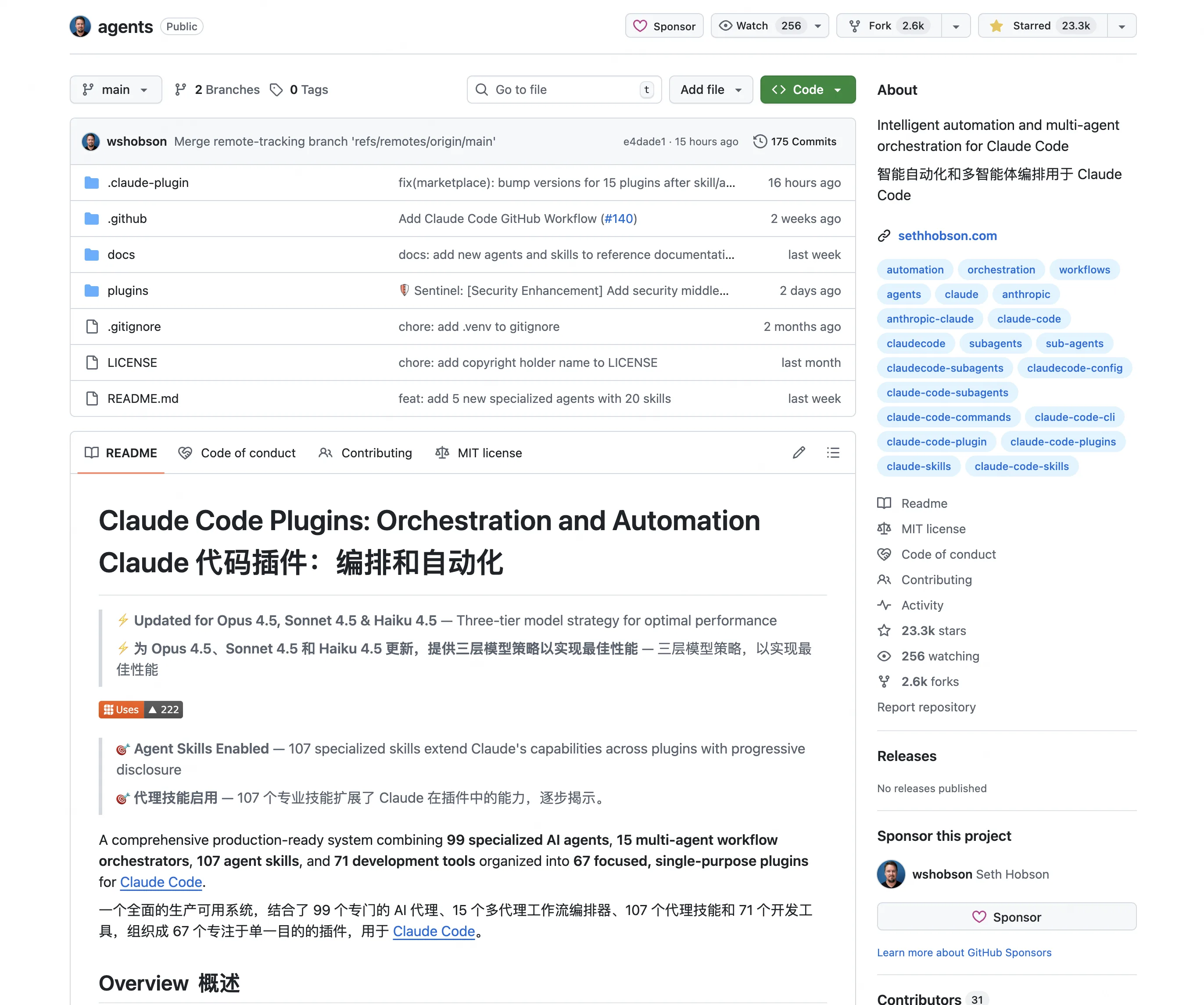
- View and manage Subagent usage.
- You can use pre-defined agents from Agent repositories on GitHub.
- The most commonly used SubAgent is
/code-review-ai:ai-review, primarily for code review.
/hooks
- View and manage Claude Code Hooks.
- For example, auto-formatting code after each completion.
{ "hooks": { "Stop": [ { "hooks": [ { "type": "command", "command": "cd \"$CLAUDE_PROJECT_DIR\" && make format", "timeout": 60 } ] } ] } } - For example, system notifications after each message completion.
{
  "hooks": {
    "Notification": [
      {
        "matcher": "",
        "hooks": [
          {
            "type": "command",
            "command": "terminal-notifier -title '🚀 Notification' -subtitle 'Awaiting your input' -message 'Claude is waiting for the next step' -sound 'Pop' -execute '/usr/local/bin/code /Users/wyx/code'"
          }
        ]
      }
    ],
    "Stop": [
      {
        "matcher": "",
        "hooks": [
          {
            "type": "command",
            "command": "terminal-notifier -title '✅ Notification' -subtitle 'Task complete' -message 'Current task is finished' -sound 'Pop' -execute '/usr/local/bin/code /Users/wyx/code'"
          }
        ]
      }
    ]
  }
}
/tasks
- Lists and manages background tasks. You can quickly trigger it with
!. - I rarely trigger it manually — I prefer opening a new window to check the running status and copy errors myself.
/export
- Exports the current session content.
- Useful when you need to analyze the content with another AI tool — export and paste it into other AI tools.
Custom Command Sharing
Claude Code supports custom commands — just write md files and place them in the ~/.claude/commands/ directory.
/commit
# Commit Message Generation Guidelines

You are an experienced software engineer and code review expert focused on generating high-quality commit messages that follow the Git Conventional Commits specification, executing git add and git commit commands, but NOT executing git push.

## Core Task

Based on the code changes (diff) or staged content provided by the user, perform the following analysis and generate a commit message:

1. **Atomic Check**:
    * First analyze whether the code changes are too complex or contain multiple unrelated modifications.
    * If it contains multiple logically independent changes (e.g., simultaneously modifying UI and backend API with no direct dependency), **suggest splitting the commit first** and provide split recommendations.
    * If the change is atomic, proceed to generate the commit message.

2. **Commit Generation**:
    * Strictly follow the **Conventional Commits** format.
    * **Language requirement**: The commit message subject and body must be in **Chinese**.
    * **Final note**: Include who made this commit, e.g., "Generated by Claude AI assistant".

    * **Format structure**:

        ```text
        <emoji> <type>(<scope>): <subject>

        <body>
        ```

## Detailed Rules

### 1. Header Format

* **Emoji**: Choose the most accurate emoji based on the change type (see table below).
* **Type**: Use standard English types (e.g., `feat`, `fix`) for tool compatibility.
* **Scope** (optional): Wrapped in English parentheses, briefly describe the affected module or filename.
* **Subject**: Concise **Chinese** description, no more than 50 characters, no period at the end.

### 2. Body Content (Critical)

The body must be clearly sectioned with these two parts:
* **What**: Use unordered lists (`- `) to detail specific code changes.
* **Why**: Explain the motivation, problems solved, or optimizations achieved.

### 3. Type/Emoji Mapping Table

| Type | Emoji | Meaning | Use Case |
|:---|:---|:---|:---|
| **feat** | ✨ | New Feature | Introducing new features |
| **fix** | 🐛 | Bug Fix | Fixing production or dev bugs |
| **docs** | 📝 | Documentation | Documentation-only changes (README, API doc) |
| **style** | 💄 | Format/Style | Code formatting, UI tweaks (no logic changes) |
| **refactor** | ♻️ | Refactor | Code restructuring without fixing bugs or adding features |
| **perf** | ⚡️ | Performance | Performance improvements |
| **test** | ✅ | Tests | Adding or modifying tests |
| **build** | 📦 | Build | Build system or dependency changes |
| **ci** | 👷 | CI/CD | CI config or script changes |
| **chore** | 🔧 | Chores | Miscellaneous changes |

## Output Example

**Input**: User modified login logic, added captcha verification, and fixed a null pointer error.

**Output**:

✨ feat(auth): 增加登录时的验证码校验机制

- 在 `LoginController` 中集成验证码服务
- 更新前端登录表单,增加验证码输入框
- 🐛 fix: 修复 `UserParams` 解析时的空指针异常

**原因 (Why):**
为了防止暴力破解攻击,提高账户安全性,因此引入强制验证码流程。同时顺带修复了测试中发现的潜在崩溃问题。

---

**Note**:
*   You may execute commit commands, but the final git push is left to the user since the commit message needs user confirmation.
*   The final output should only contain the suggested Commit Message — no extra pleasantries.

***
Final Thoughts
These Claude Code best practices are primarily based on backend development experience — frontend optimization strategies are still being explored.
If you want to dive deeper into ensuring code quality with AI-assisted programming, check out AI Programming Quality Control: 5 Lines of Defense for Code Quality, which covers the 5-layer quality defense system in Claude Code programming.
These Claude Code tips and practices continue to evolve, and I'll keep updating this article.
Further Reading
- Claude System Architecture Deep Dive — Understanding MCP, Skills, Subagents, Hooks and other components behind Claude Code
- What Are Claude Skills — Core principles and use cases of Skills
- Complete Guide to Claude Subagent — Mastering subagent usage and customization
- From Eclipse to Zed: A Developer's Editor Evolution — My journey through development tools
Related Posts
My Claude Code Quality Control Workflow
Sharing my quality control practices with Claude Code — Hooks automation, testing strategy, AI Review, Pre-commit, and GitHub integration as 5 lines of defense
From Eclipse to Zed: A Developer's Editor Evolution
From backend to full-stack development, from VS Code with 200+ plugins to a terminal-first workflow — how my editor choices evolved with the AI era
What exactly is a self-improving agent improving?
From Reflexion, Voyager, ADAS, AFlow, DGM, SEAL to AlphaEvolve, we map out the technical landscape, key papers, engineering practices, and risk boundaries of self-improving agents.