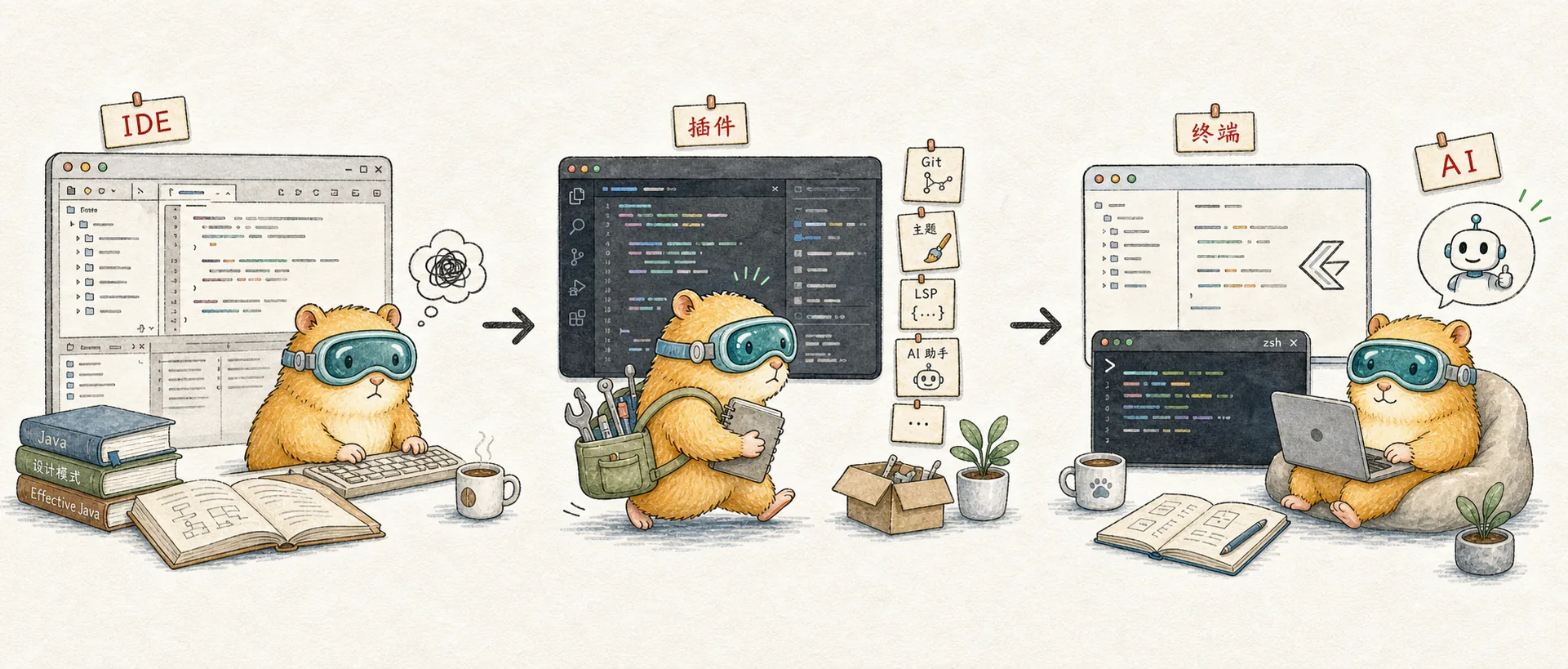
From Eclipse to Zed: A Developer's Editor Evolution
From backend to full-stack development, from VS Code with 200+ plugins to a terminal-first workflow — how my editor choices evolved with the AI era
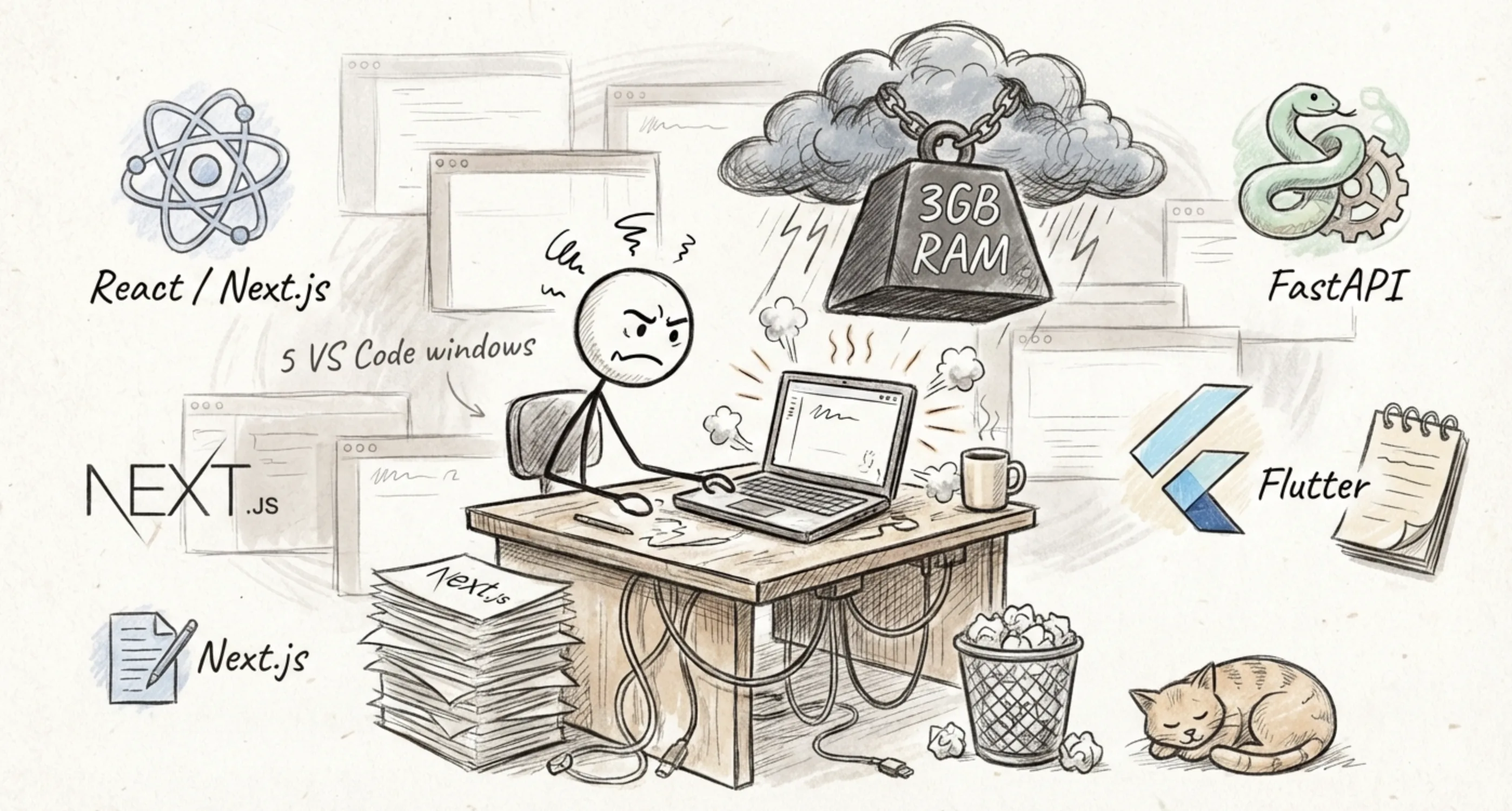
Just another ordinary workday.
I was juggling three projects simultaneously — a Next.js frontend, a FastAPI backend, and a Flutter mobile app. VS Code had five windows open, Chrome was devouring a huge chunk of memory. The fans started whirring, the mouse started stuttering, and I started getting frustrated.
"Why does a text editor need 3GB of memory?"
That moment, I realized it was time to rethink my development tools.
Looking back, I've switched editors several times since writing my first line of code. Each switch wasn't just about changing software — it was about my entire way of working changing.
The Java Era: Eclipse → IntelliJ IDEA
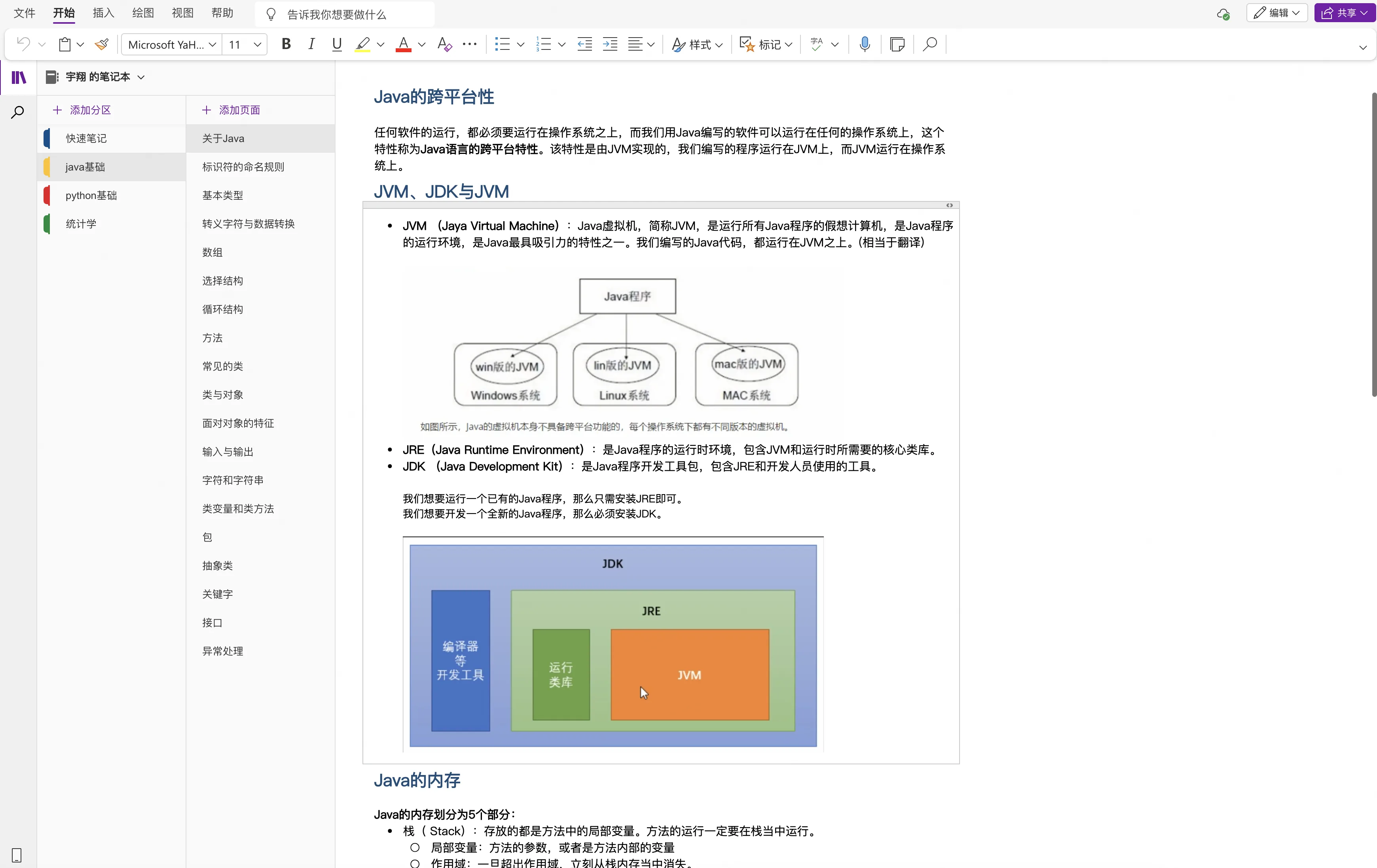
My programming career started with Java. Thanks to Microsoft's syncing, I can still find my study notes from years ago.
When I first learned to code, Eclipse was practically the standard for Java development. Honestly, Eclipse was fully featured, but it had a distinct "clunkiness" — slow startup, ugly interface, plugins constantly conflicting. Opening Eclipse felt like booting up a small server.
Later, while tinkering around, I discovered IntelliJ IDEA.
The first time I opened it, I was stunned: How could code completion be this smart? How could refactoring be this smooth? Operations that required manually editing a dozen files in Eclipse could be done with a single keyboard shortcut in IntelliJ.
It felt like upgrading from a Nokia to an iPhone.
To be honest, I didn't stick with Java for long before switching to Python. But IntelliJ's experience left me with a positive impression of JetBrains, and I naturally expanded to their full suite. WebStorm for frontend, PyCharm for Python, DataGrip for databases. Each IDE offered a deeply optimized experience for its specific language, which was genuinely great. Even after switching to VS Code, I kept all these JetBrains tools installed — I barely opened them, but just couldn't bring myself to uninstall them.
Going Full-Stack
The turning point came when I started doing full-stack development.
Full-stack means you need to know a bit of everything. Python for backend, Vue and React for frontend, Flutter for mobile, the occasional Shell script, plus Docker and various config files. With so many languages, I started thinking about switching tools. Sure, IntelliJ IDEA could support many languages through plugins, but it was still too heavy. Personally, I prefer building up my development environment piece by piece, like building with blocks, rather than using a fully pre-configured IDE.
I needed a "general-purpose" editor.
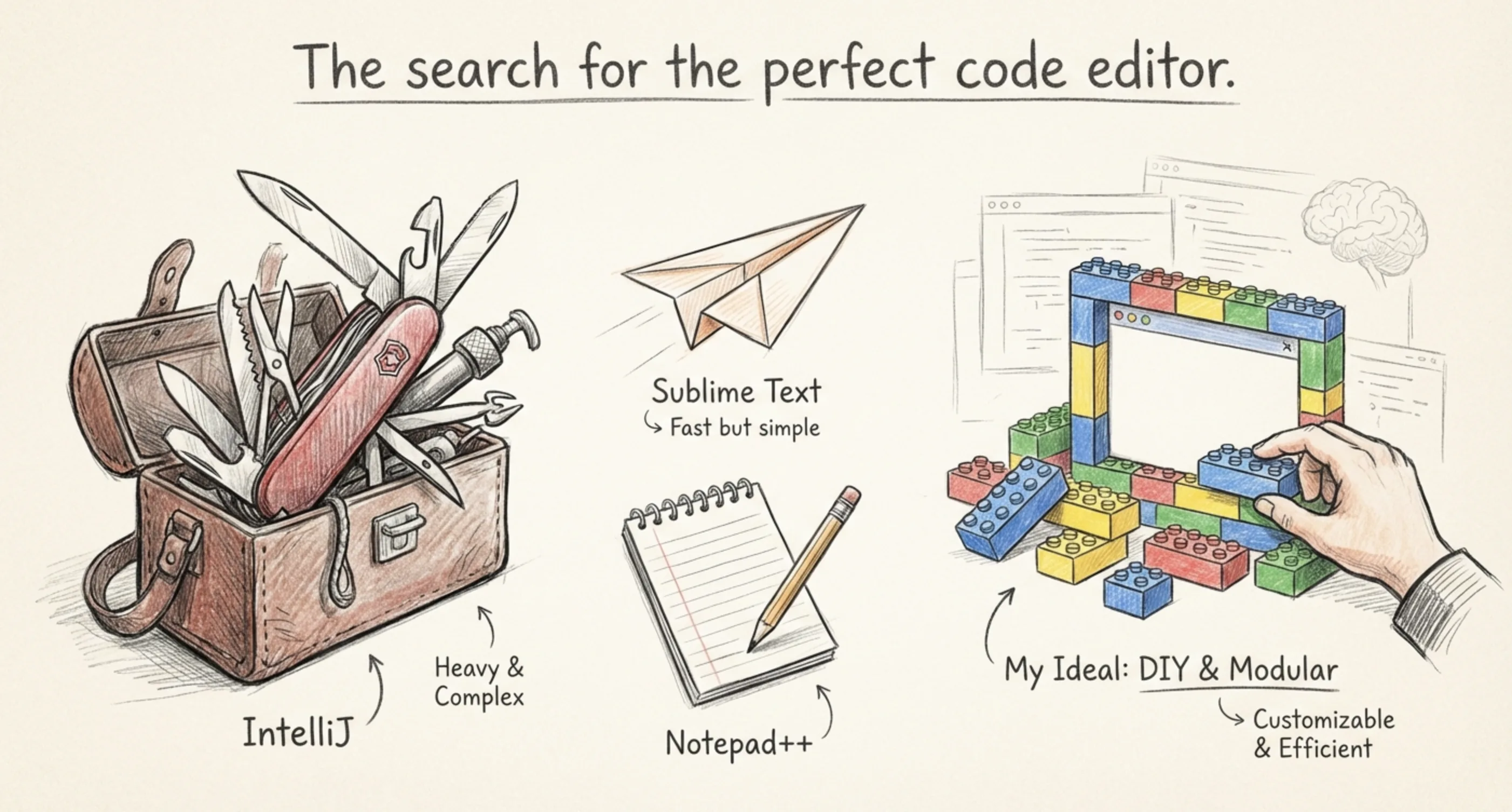
Before finding VS Code, I tried others.
I downloaded Sublime Text and gave it a try — it was fast, sure, but way too bare-bones. Its only advantage seemed to be speed; everything else paled compared to JetBrains. I looked at Notepad++ too, but it felt more like a fancy notepad than a development tool.
The Golden Age of VS Code
VS Code appeared and perfectly solved my problem.
One editor, different plugins for different languages, handling everything. Pylance for Python, Dart plugin for Flutter, Volar for Vue — all in one window.
Then began my long journey of customization.
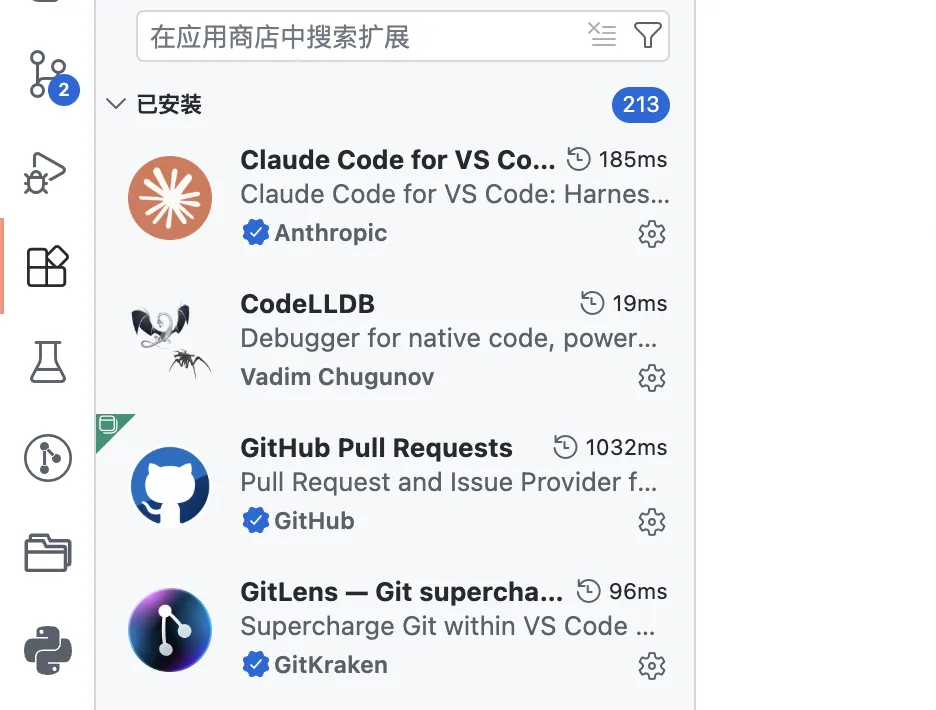
I tried at least ten themes, several icon packs, bound and rebound keyboard shortcuts countless times. Code snippets, Git plugins, Docker plugins, various linters and formatters... Before I knew it, I had installed over 200 plugins.
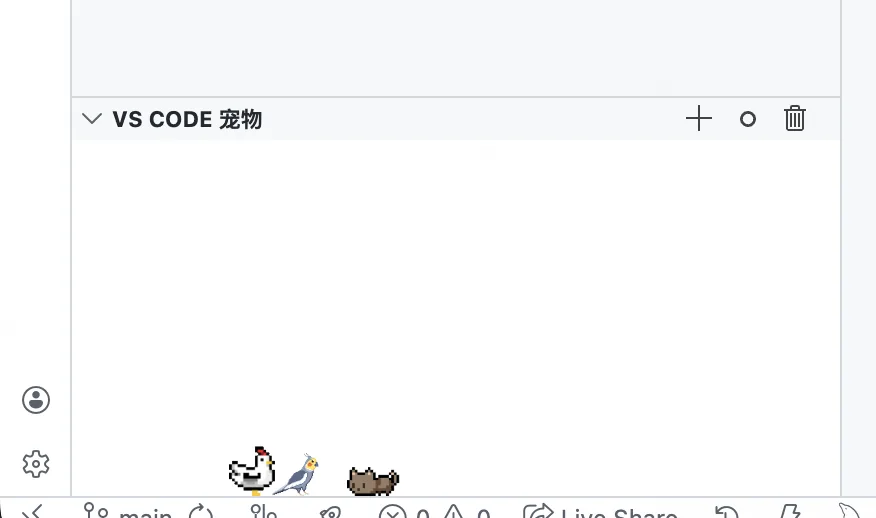
During that period, configuring VS Code itself became a hobby. I'd frequently browse communities and forums looking for useful plugins, and every discovery felt like finding treasure. The plugin marketplace was incredibly rich, and genuinely every single one could boost productivity — for Python development alone, I probably installed over a dozen. Of course, there were some whimsical ones too, like vscode-pets, which lets you keep a little pet in the editor. Zero productivity value, but I just couldn't resist installing it.
I even bought a membership for a database plugin — Database Client — just to keep all my work within VS Code. It lets you connect to various databases directly from VS Code, preview data, and run operations. With that, I didn't even need to open DataGrip anymore.
To this day, I still tinker with all sorts of plugins. The tinkering itself is part of the fun.
VS Code holds approximately 73% market share among code editors, with over 60,000 extensions in its marketplace.
That was the golden age of VS Code. More precisely, it was the period when I was most productive at tweaking tools.
The AI Programming Era Arrives
My first encounter with AI programming was through GitHub Copilot.
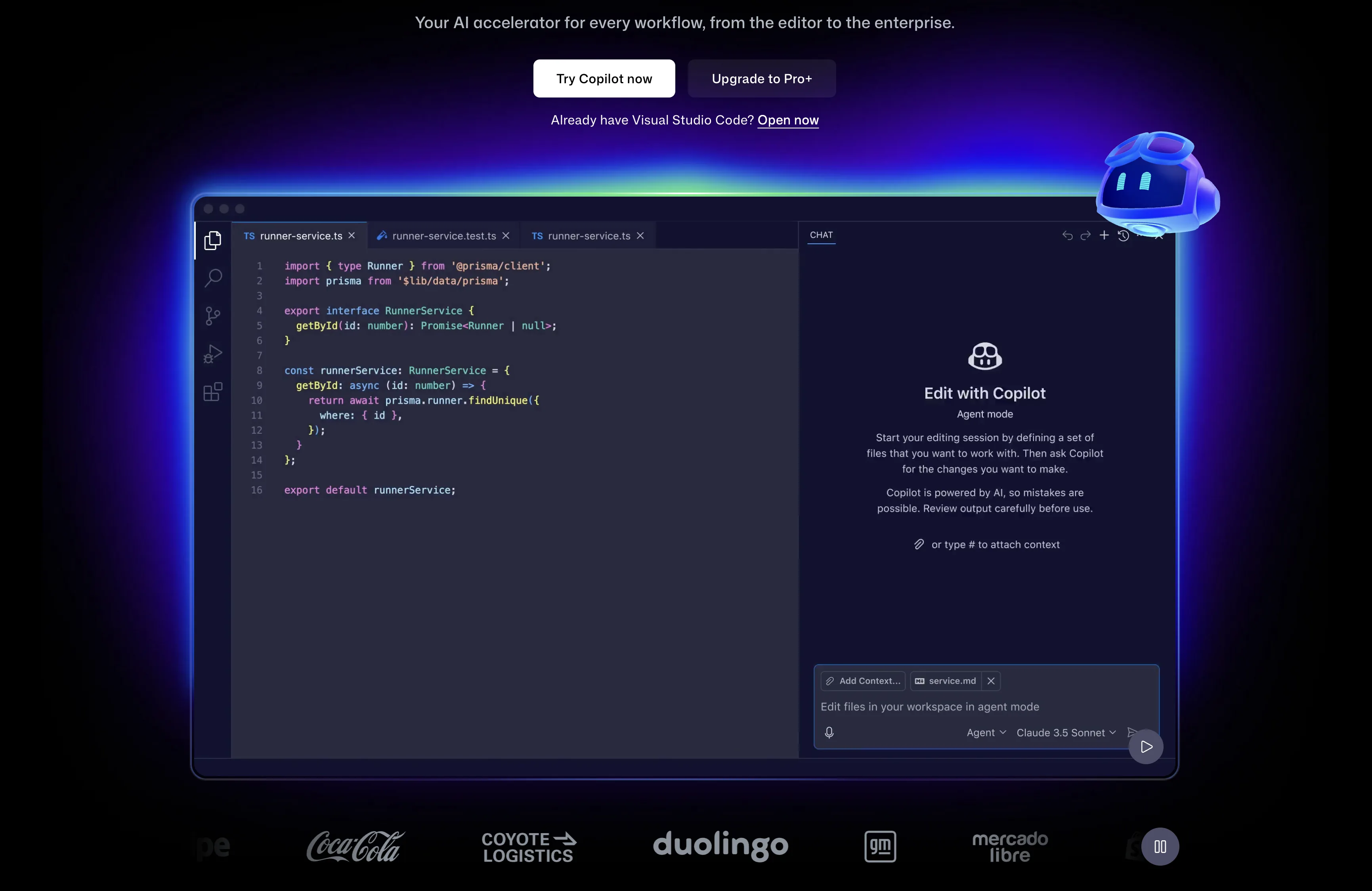
Back then, Copilot didn't have a Chat feature — it would just quietly suggest what you might write next. You'd type a comment, and it would auto-complete an entire code block. The first time I saw it, I was genuinely amazed — how does this thing know what I want to write?
Of course, looking back now, these are just the basics of AI programming.
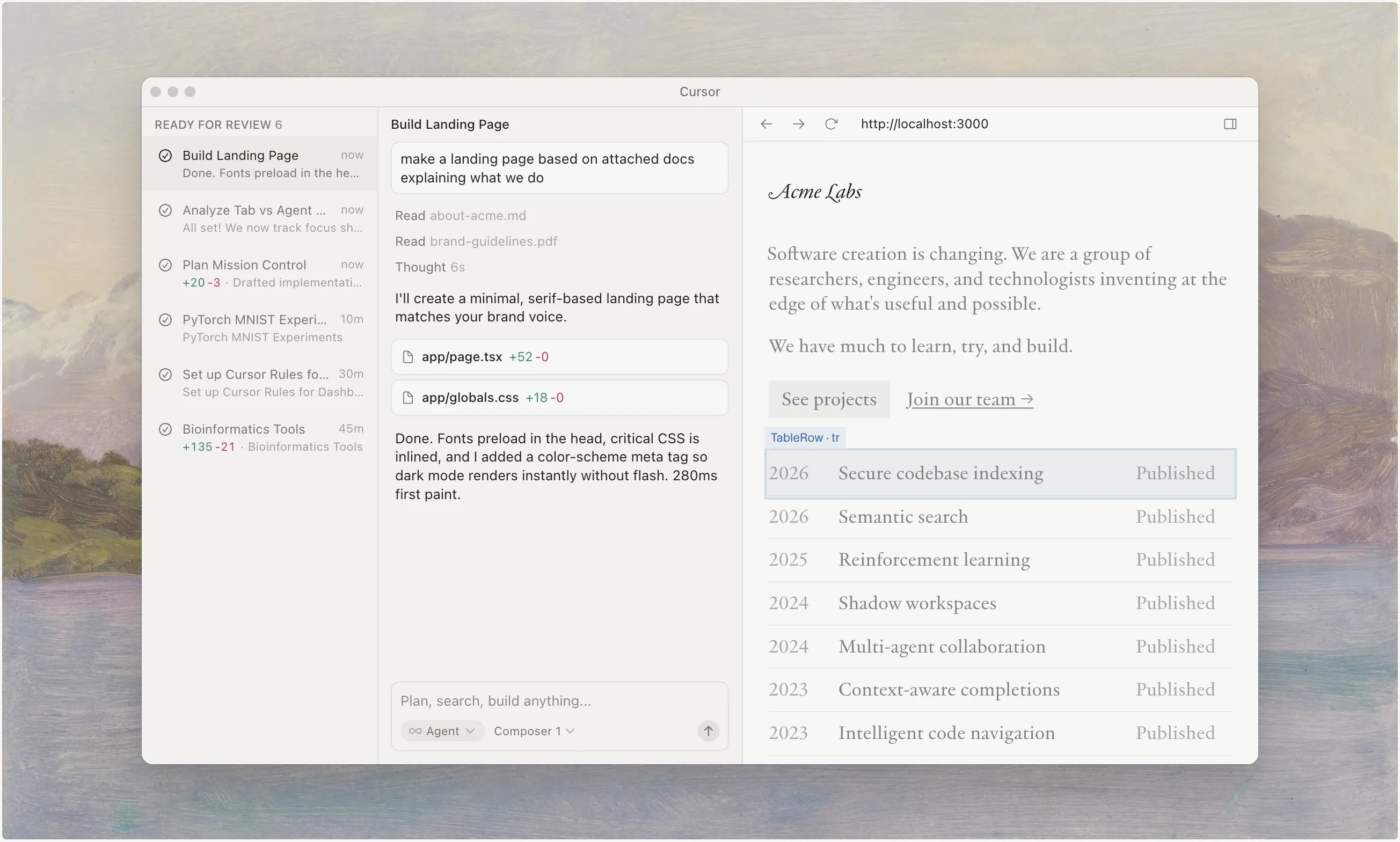
Then Cursor blew up. I was a bit late to the party, honestly, because I still had a free student Copilot license, and since Cursor is essentially a VS Code fork while GitHub Copilot was truly the first to do AI programming, I always felt Copilot was the best and had no motivation to switch.
Until a colleague recommended I try Cursor.
Once I tried it, I realized it was leagues ahead of VS Code's Copilot. The entire interaction was smoother, and the AI's contextual understanding was much deeper. I genuinely don't understand how Copilot ended up the way it did — they had the head start, yet got surpassed by a newcomer.
Then came Claude Code.
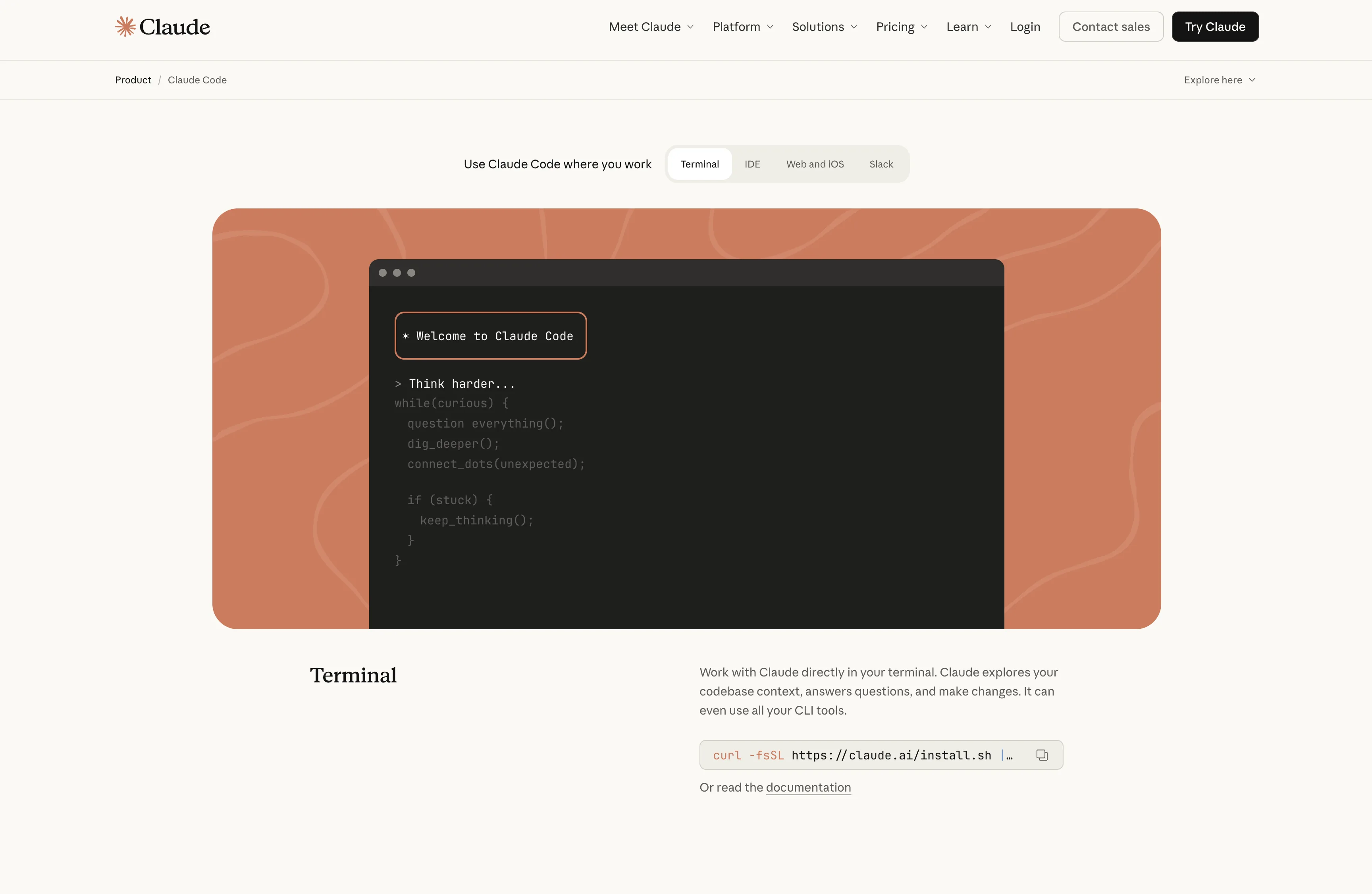
When I started using Claude Code, everything changed again. The old workflow was: write in the editor → run in the terminal → fix in the editor. Now it became: tell the AI what you want in the terminal → AI writes it → you review.
Terminal usage skyrocketed.
The terminal used to be just for running npm run dev and git push. Now it became my primary programming interface. I spend most of my time conversing with Claude Code, having it write code, fix bugs, and do refactoring. The editor took a back seat, becoming a tool for "reading code."
CLI agents have no chunky interface for confirming changes, which can make the process faster for power users. A CLI agent's single-command workflow can feel smoother — naturally integrating with shell scripting and developer workflows without forcing interaction with graphical interfaces.
At the same time, because AI made programming faster, the number of projects I worked on simultaneously increased. Where I used to work on one project per month, I might now push forward three or four at once.
This directly led to the next problem.
VS Code Couldn't Keep Up
Multiple projects + 200+ plugins = disaster.
Every additional VS Code window consumed several hundred megabytes of memory. Five windows and you'd easily break 3GB. My MacBook's fans went into overdrive, the UI started dropping frames, and I could feel typing lag.
My VSCode Was Using 3GB of RAM — Here's How I Fixed It
Task Manager tells the brutal truth: 3.2GB of memory usage. For a text editor.
This wasn't just my problem. Search "VS Code high memory usage" and you'll find countless similar complaints. Electron architecture + tons of plugins + multiple windows = memory explosion was practically inevitable.
I tried various optimizations — disabling unused plugins, using Profiles to load different plugin sets per project, limiting background processes. It helped, but only treated the symptoms.
At the end of the day, VS Code is an Electron-based app. Electron means every window runs a full Chromium instance. Five windows means five Chromes.
Terminal Is King: Discovering Warp
Since most programming work was already happening in the terminal, the terminal itself needed to be good.
macOS's built-in Terminal was too basic, and iTerm2 had served me well but felt aging. Then I discovered Warp.
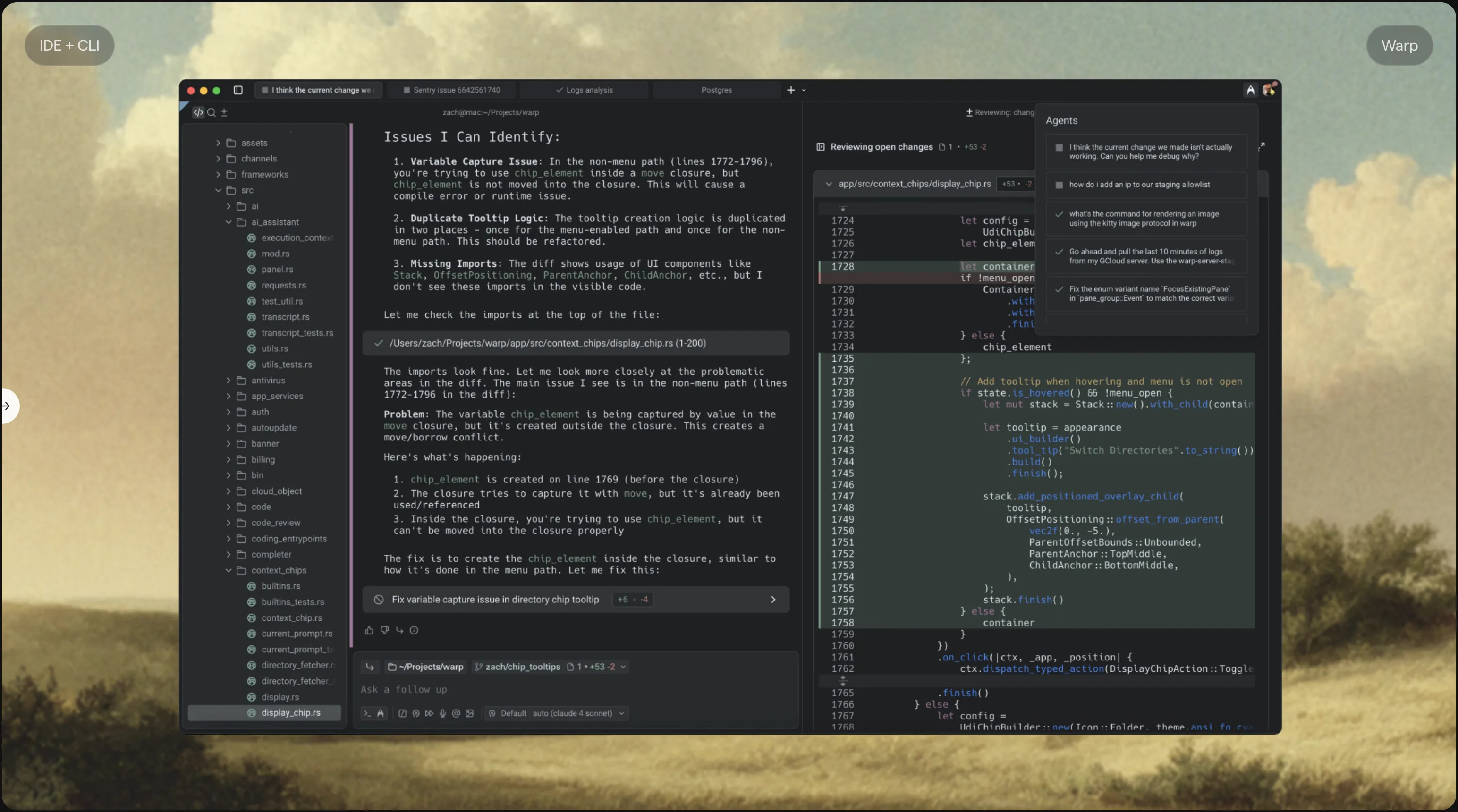
My first impression of Warp was speed. Fast to launch, fast to render, fast to respond. Then there's the Block design — each command and its output form an independent "block" that you can select, copy, and search like in a text editor.
After daily use, there's no going back. A few small details:
The input area is a real editor with multi-cursor support, syntax highlighting, and auto-completion. Previously, if you made a typo in a long terminal command, you'd hold the arrow keys to slowly navigate. Now you just click where the mistake is — sounds obvious, but traditional terminals just can't do it.
Each Block has a small button in the upper right corner for one-click copying of the entire output. Selecting text in a traditional terminal required precisely dragging the mouse — slightly off and you'd select too much or too little. No longer a concern.
For heavy terminal users, these quality-of-life improvements are massive.
At this stage, my workflow became: 90% of the time programming with Claude Code in the Warp terminal, opening VS Code only when I needed to look at Git history — mainly using GitLens to see who changed what code and when.
Meeting Zed
The issue was, even when using VS Code just to read code, it still consumed just as much memory.
One day while scrolling Twitter, I saw Zed. Clicked through — "A high-performance, multiplayer code editor from the creators of Atom and Tree-sitter." The founding team includes the original creators of the Atom editor, which piqued my interest.
Download, install, open.
Fast. Very fast.
Not the "seems slightly faster" kind of fast, but the "this is what an editor should feel like" kind of fast. Launching, opening files, searching, jumping to definitions — every operation was instant.
How fast exactly? There's plenty of benchmark data online:
| Metric | VS Code | Zed |
|---|---|---|
| Cold start time | ~1.2s | ~0.12s |
| Single window memory | ~730MB | ~142MB |
| Large file (100K lines) | Noticeable lag | Instant |
Source: Zed vs VS Code Performance Benchmark (2024)
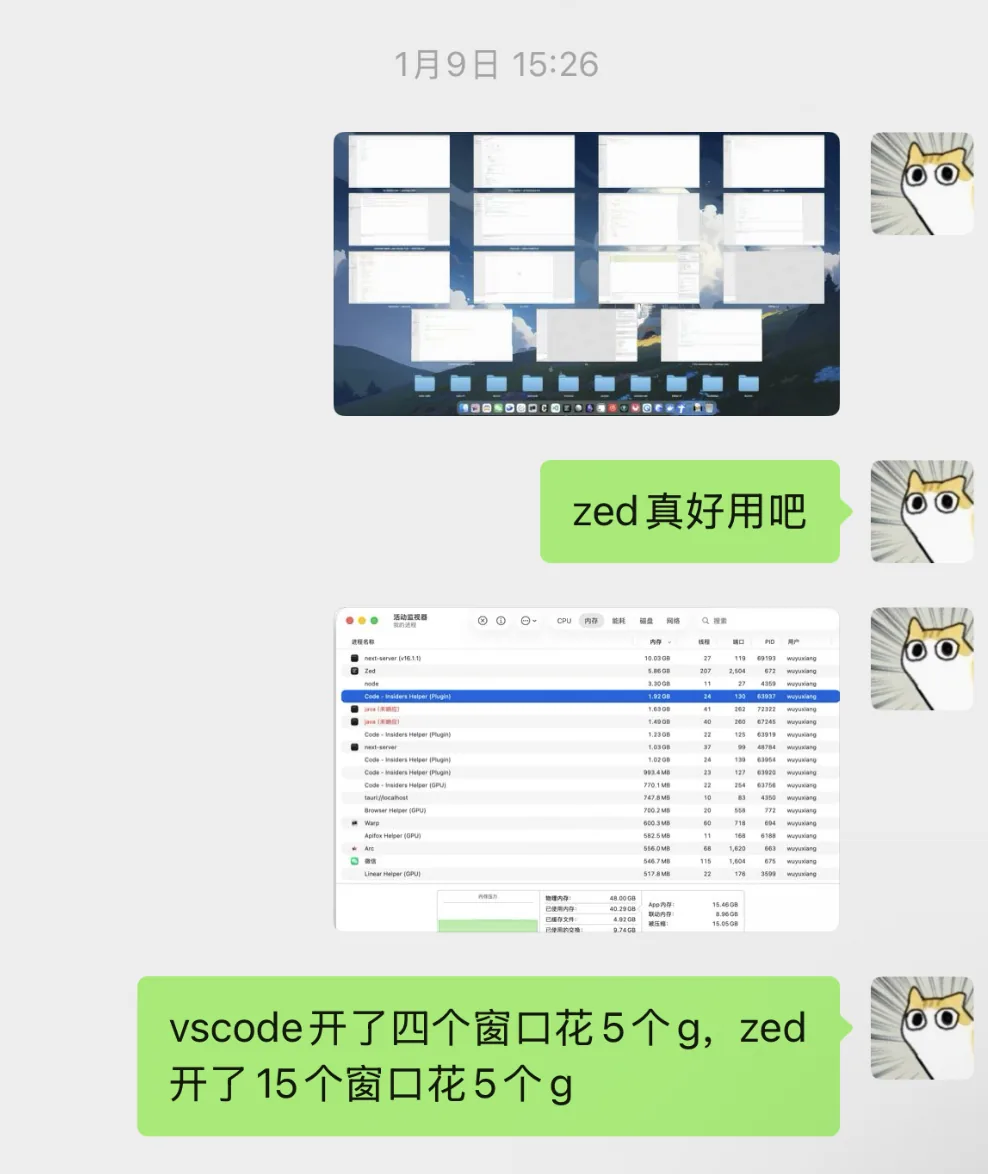
Zed is written in Rust with native GPU rendering — no Electron overhead. This means it can have a dozen projects open simultaneously with less total memory than a single VS Code window.
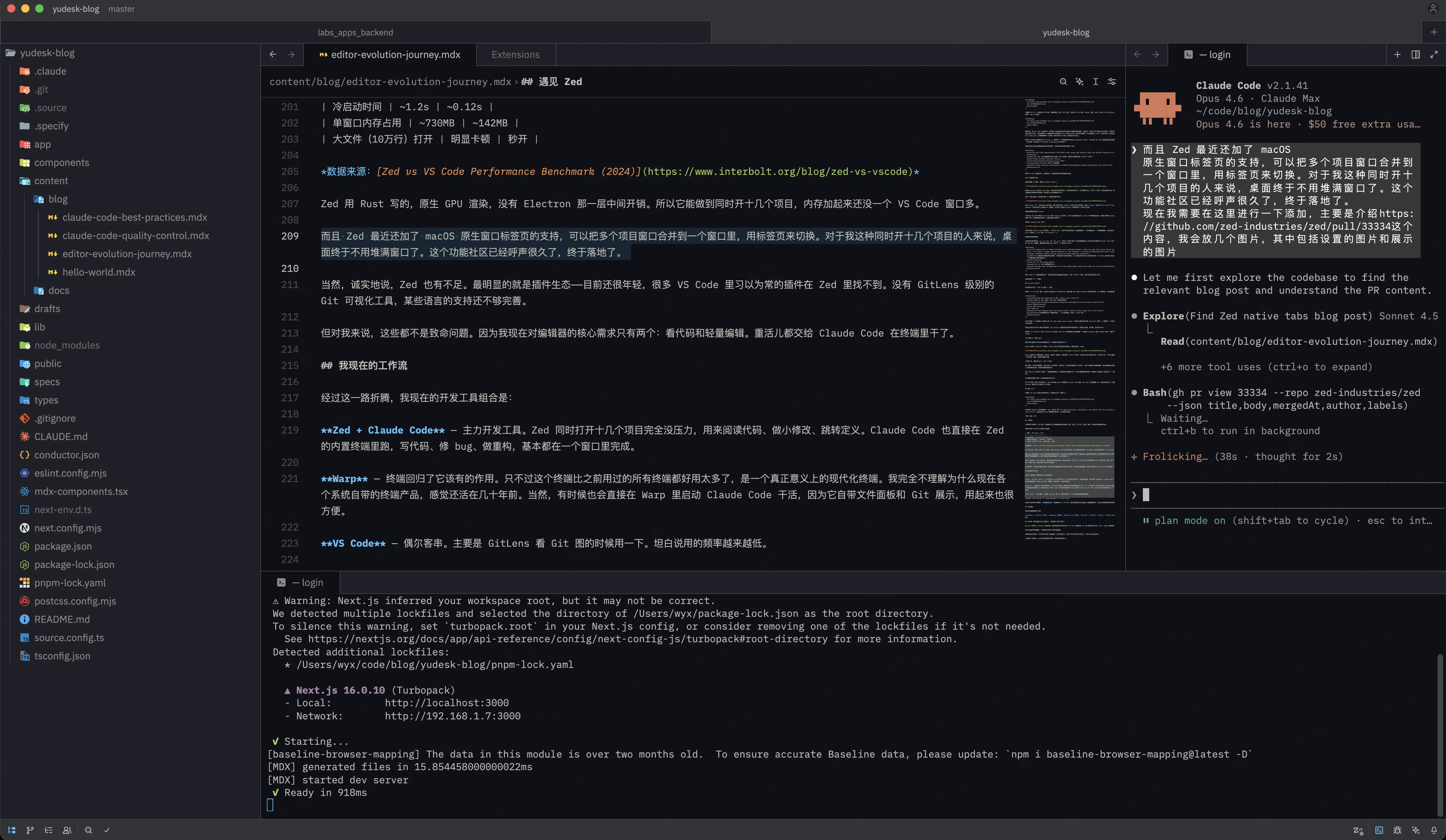
Zed also recently added support for macOS native window tabs, allowing you to merge multiple project windows into one and switch between them with tabs. For someone like me who has a dozen projects open simultaneously, my desktop finally doesn't need to be cluttered with windows. The community had been requesting this feature for a long time, and it finally landed.

Enabling it is simple — just add "use_system_window_tabs": true to Zed's settings. No restart needed; the next window you open will automatically use the new behavior. It also follows macOS system preferences for tab behavior (always / never / in full screen), staying consistent with the system.
To be fair, Zed has shortcomings. The most obvious is its plugin ecosystem — it's still young, and many plugins you take for granted in VS Code don't exist in Zed yet. No GitLens-level Git visualization tool, and some language support isn't fully mature.
But for me, none of these are dealbreakers. My core needs from an editor are now just two things: reading code and making quick edits. The heavy lifting is all done by Claude Code in the terminal.
My Current Workflow
After this entire journey, my current development tool setup is:
Zed + Claude Code — Primary development tools. Zed handles a dozen open projects with zero pressure, used for reading code, making small edits, and jumping to definitions. Claude Code also runs directly in Zed's built-in terminal — writing code, fixing bugs, and refactoring all happen in a single window.
Warp — The terminal has returned to its rightful role. Except this terminal is far better than any I've used before — a truly modern terminal. I genuinely don't understand why the default terminal apps on various operating systems still feel like they're stuck decades in the past. Sometimes I'll also launch Claude Code directly in Warp, since it has built-in file panels and Git display, which is quite convenient.
VS Code — Occasional cameo. Mainly for using GitLens to view Git graphs. Honestly, I use it less and less frequently.
Each tool in its role. Zed for "reading" and "writing," Warp for daily commands, VS Code for "investigating."
The core logic of this workflow: lightweight editor, heavy terminal usage. In the AI era, real programming happens in the terminal. The editor just needs to let you comfortably read code and make quick edits.
If you're also using Claude Code, I recommend reading My Claude Code Best Practices for efficient usage tips, and My Claude Code Quality Control Workflow for ensuring AI-generated code quality. For a deeper look at Claude Code's design, check out Claude System Architecture Deep Dive.
Final Thoughts
Looking back at this editor evolution journey:
Eclipse → IntelliJ IDEA → JetBrains Suite → Sublime Text (passing through) → VS Code + Copilot → Cursor → Claude Code + Zed + Terminal
Each switch wasn't because the old tools got worse — it was because my way of working changed.
When doing Java, IntelliJ was the optimal choice. When doing full-stack multi-language development, VS Code was the optimal choice. In today's AI era with terminal-first workflows, Zed + Warp is the optimal choice.
There's no eternally best editor — only the one that best fits your current workflow.
If you're still using an editor that feels like "good enough," ask yourself: has your way of working already changed while your tools haven't caught up?
Tools serve people. When they start holding you back, it's time to switch.
Related Posts
My Claude Code Best Practices
Sharing my experience with Claude Code — 10 core tips, slash command guide, and custom command configuration to boost your AI programming efficiency
My Claude Code Quality Control Workflow
Sharing my quality control practices with Claude Code — Hooks automation, testing strategy, AI Review, Pre-commit, and GitHub integration as 5 lines of defense
What exactly is a self-improving agent improving?
From Reflexion, Voyager, ADAS, AFlow, DGM, SEAL to AlphaEvolve, we map out the technical landscape, key papers, engineering practices, and risk boundaries of self-improving agents.