
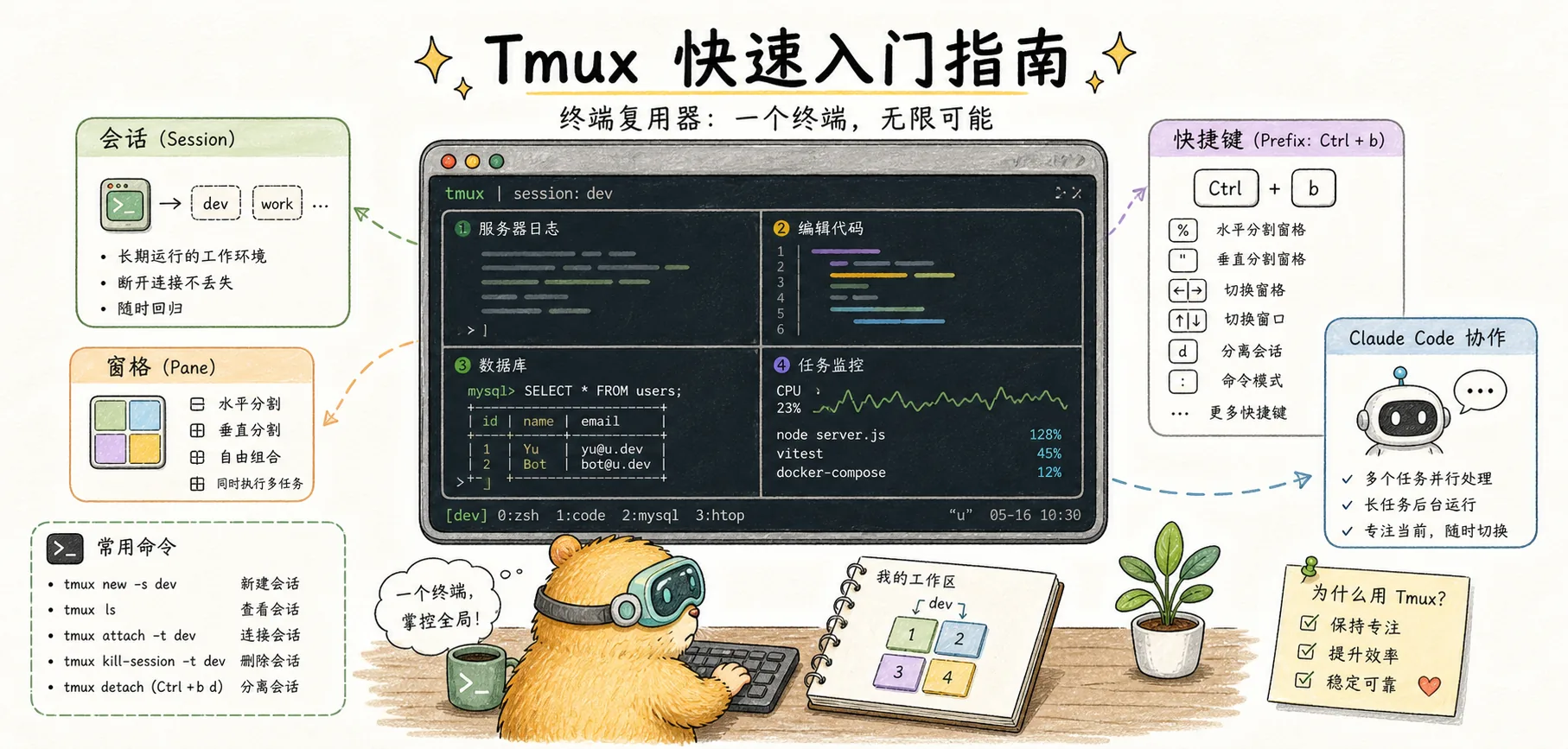
Tmux 快速入门指南
从零开始学习 Tmux 终端复用器:基础概念、常用命令、以及与 Claude Code 的深度集成
引言
Adoption of tools like Tmux has surged, largely due to the agent team workflows found in command-line coding agent products like Claude Code.
如果你用过 Claude Code 的 Agent Teams 或者想同时运行多个 Claude 实例,Tmux 几乎是必备工具。它能让你在一个终端窗口中运行多个会话,会话在后台持续运行即使你关闭了终端,而且 Claude 可以在 Tmux 中自动生成和管理多个 Agent。
这篇教程专为 Claude Code 用户设计,既涵盖 Tmux 基础知识,也重点介绍与 Claude Code 的集成技巧。
理解 Tmux
终端复用器,允许在一个终端窗口中创建和管理多个终端会话。核心特性是会话持久化——即使断开连接,会话也会继续运行,重新连接后可以恢复到原来的状态。
Tmux 的三个核心概念:
┌─────────────────────────────────────────────────────────┐
│                    Session(会话)                       │
│  ┌─────────────────────────────────────────────────────┐│
│  │                 Window(窗口)                       ││
│  │  ┌──────────────┐  ┌──────────────┐  ┌───────────┐ ││
│  │  │   Pane 1     │  │   Pane 2     │  │  Pane 3   │ ││
│  │  │  (Claude 1)  │  │  (Claude 2)  │  │  (Logs)   │ ││
│  │  │              │  │              │  │           │ ││
│  │  │              │  │              │  │           │ ││
│  │  └──────────────┘  └──────────────┘  └───────────┘ ││
│  └─────────────────────────────────────────────────────┘│
│  Window 1: Development    Window 2: Testing             │
└─────────────────────────────────────────────────────────┘| 概念 | 类比 | 说明 |
|---|---|---|
| Session | 工作空间 | 最顶层容器,即使断开连接也会持续运行 |
| Window | 浏览器标签页 | 一个会话可以包含多个窗口 |
| Pane | 分屏 | 一个窗口可以分割成多个窗格 |
安装与基础
安装 Tmux
# macOS
brew install tmux

# Ubuntu/Debian/WSL
sudo apt-get install tmux

# CentOS/RHEL
sudo yum install tmux
验证安装:
tmux -V
# 输出类似:tmux 3.6a
前缀键
Tmux 的所有命令都以前缀键开始,默认是 Ctrl+B。
输入命令的方式:
- 按下
Ctrl+B(不要松开) - 松开后,按命令键
例如,分割窗口:Ctrl+B 然后按 %
常用命令速查
会话管理
| 命令 | 说明 |
|---|---|
tmux | 创建新会话 |
tmux new -s name | 创建命名会话 |
tmux ls | 列出所有会话 |
tmux attach -t name | 连接到会话 |
tmux kill-session -t name | 关闭会话 |
Ctrl+B d | 分离当前会话(后台运行) |
窗口管理
| 快捷键 | 说明 |
|---|---|
Ctrl+B c | 创建新窗口 |
Ctrl+B n | 下一个窗口 |
Ctrl+B p | 上一个窗口 |
Ctrl+B 0-9 | 切换到指定窗口 |
Ctrl+B , | 重命名当前窗口 |
Ctrl+B & | 关闭当前窗口 |
窗格管理
| 快捷键 | 说明 |
|---|---|
Ctrl+B % | 垂直分割(左右) |
Ctrl+B " | 水平分割(上下) |
Ctrl+B 方向键 | 在窗格间移动 |
Ctrl+B x | 关闭当前窗格 |
Ctrl+B z | 最大化/还原窗格 |
Ctrl+B { | 向左移动窗格 |
Ctrl+B } | 向右移动窗格 |
其他常用
| 快捷键 | 说明 |
|---|---|
Ctrl+B [ | 进入复制模式(可滚动) |
q | 退出复制模式 |
Ctrl+B ? | 显示所有快捷键 |
与 Claude Code 集成
为什么 Claude Code 需要 Tmux
- Agent Teams 的 Split-pane 模式:每个 Teammate 显示在独立窗格中
- 后台运行:任务继续执行,即使关闭终端
- 会话持久化:断线重连后恢复完整上下文
- 多实例管理:同时运行多个 Claude 会话
基本用法:后台运行 Claude
# 在 tmux 中启动 Claude
tmux new -s claude-work
claude

# 分离会话(Claude 继续运行)
# Ctrl+B d

# 稍后重新连接
tmux attach -t claude-work
使用 --tmux 参数
Claude Code 原生支持 Tmux 集成:
# 在新的 tmux 会话中启动 Claude
claude --tmux

# 配合 worktree 使用
claude -w feature-auth --tmux
这会自动:
- 创建新的 tmux 会话
- 在其中启动 Claude Code
- 会话命名为
claude-{随机ID}
Agent Teams 的 Tmux 模式
Agent Teams 可以使用 split-pane 显示模式,每个 Teammate 在独立窗格中运行:
// settings.json
{
  "teammateMode": "tmux"
}
或通过命令行:
claude --teammate-mode tmux效果:
┌─────────────────────────────────────────────────────────┐
│                    Team Lead                             │
├─────────────────┬─────────────────┬─────────────────────┤
│   Teammate 1    │   Teammate 2    │    Teammate 3       │
│   Security      │   Performance   │    Testing          │
│                 │                 │                     │
└─────────────────┴─────────────────┴─────────────────────┘
实用配置
推荐的 ~/.tmux.conf
创建或编辑 ~/.tmux.conf:
# 使用 Ctrl+A 作为前缀键(更容易按)
set -g prefix C-a
unbind C-b
bind C-a send-prefix

# 启用鼠标支持
set -g mouse on

# 增加历史缓冲区(Claude 输出很多)
set -g history-limit 50000

# 使用 vim 风格的窗格导航
bind h select-pane -L
bind j select-pane -D
bind k select-pane -U
bind l select-pane -R

# 更直观的分割快捷键
bind | split-window -h
bind - split-window -v

# 快速重载配置
bind r source-file ~/.tmux.conf \; display "Config reloaded!"

# 256 色支持
set -g default-terminal "screen-256color"
set -ga terminal-overrides ",*256col*:Tc"

# 窗口编号从 1 开始(0 太远了)
set -g base-index 1
setw -g pane-base-index 1

# 状态栏优化
set -g status-position bottom
set -g status-left-length 40
set -g status-right-length 60
重载配置:
tmux source-file ~/.tmux.confClaude Code 专用配置
针对 Claude Code 的优化配置:
# Claude 会话弹窗快捷键
bind -r y run-shell '\
  SESSION="claude-$(echo #{pane_current_path} | md5sum | cut -c1-8)"; \
  tmux has-session -t "$SESSION" 2>/dev/null || \
  tmux new-session -d -s "$SESSION" -c "#{pane_current_path}" "claude"; \
  tmux display-popup -w80% -h80% -E "tmux attach-session -t $SESSION"'
这个配置的效果:
- 按
Ctrl+A y打开 Claude 弹窗 - 每个目录有独立的 Claude 会话
- 关闭弹窗后会话继续运行
- 重新打开时恢复之前的对话
常见工作流
工作流一:多项目并行
# 为每个项目创建独立会话
tmux new -s project-a
# 在里面启动 Claude
claude -w feature-x

# 分离后,创建另一个会话
# Ctrl+B d
tmux new -s project-b
claude -w bugfix-y

# 在会话间切换
tmux switch -t project-a
tmux switch -t project-b

# 或列出所有会话选择
# Ctrl+B s
工作流二:开发仪表盘
创建一个多窗格的开发环境:
# 创建会话
tmux new -s dev

# 分割成三个窗格
# Ctrl+B %(垂直分割)
# Ctrl+B "(水平分割右侧)

# 窗格布局:
# ┌───────────┬───────────┐
# │  Claude   │   Logs    │
# │           ├───────────┤
# │           │   Tests   │
# └───────────┴───────────┘

# 在第一个窗格运行 Claude
claude

# 切换到第二个窗格(Ctrl+B 右箭头)
tail -f logs/app.log

# 切换到第三个窗格
npm test -- --watch
工作流三:远程开发
Tmux 最强大的特性是会话持久化,特别适合 SSH 远程开发:
# 连接远程服务器
ssh user@server

# 创建 tmux 会话
tmux new -s remote-claude

# 启动 Claude
claude

# 断开 SSH 连接(Claude 继续运行)
# Ctrl+B d
exit

# 稍后重新连接
ssh user@server
tmux attach -t remote-claude
# Claude 会话完整恢复
工作流四:Agent Teams 监控
使用 tmux 监控 Agent Teams 的所有 Teammates:
# 启动 Claude 并使用 tmux 模式
claude --teammate-mode tmux

# 创建 Agent Team
# "创建 agent team 审查代码..."

# 此时屏幕自动分割,每个 Teammate 一个窗格
# 可以点击不同窗格直接与对应 Teammate 交流
故障排除
常见问题
| 问题 | 解决方案 |
|---|---|
| 颜色显示不正确 | 确保 TERM=xterm-256color |
| 鼠标不工作 | 添加 set -g mouse on 到配置 |
| 复制粘贴问题 | 在复制模式下使用 Enter 复制 |
| 会话消失了 | 检查 tmux ls,可能是系统重启 |
清理孤儿会话
Claude Code 有时会留下未清理的 tmux 会话:
# 列出所有会话
tmux ls

# 杀死特定会话
tmux kill-session -t session-name

# 杀死所有会话(谨慎!)
tmux kill-server
iTerm2 用户
如果你使用 macOS 的 iTerm2,可以使用其原生集成:
# 使用 iTerm2 的 tmux 集成模式
tmux -CC

# 或在 Claude Code 中
claude --teammate-mode tmux
iTerm2 会自动将 tmux 窗格转换为原生标签页和分屏。
我的使用心得
什么时候用 Tmux
| 场景 | 是否需要 Tmux |
|---|---|
| 简单的单次 Claude 对话 | 不需要 |
| 长时间运行的任务 | 需要 |
| Agent Teams | 强烈推荐 |
| 远程开发 | 必须 |
| 多项目并行 | 推荐 |
最小配置
如果你不想折腾配置,只需记住这几个命令:
# 创建会话
tmux new -s work

# 分离(后台运行)
Ctrl+B d

# 重新连接
tmux attach -t work

# 分割窗格
Ctrl+B %    # 左右分割
Ctrl+B "    # 上下分割

# 切换窗格
Ctrl+B 方向键
与 Claude Code 的最佳组合
-
Worktree + Tmux:每个 worktree 在独立的 tmux 会话中
claude -w feature-auth --tmux -
Agent Teams + Tmux:所有 Teammates 可视化管理
claude --teammate-mode tmux -
长任务 + 分离:启动后分离,稍后回来检查
# 启动
tmux new -s migration
claude
# "执行数据库迁移..."
# Ctrl+B d

# 几小时后
tmux attach -t migration
写在最后
Tmux 是 Claude Code 高效使用的关键工具,特别是在以下场景:
| 要点 | 说明 |
|---|---|
| 持久化 | 会话不会因为断开连接而丢失 |
| 并行 | 同时管理多个 Claude 实例 |
| 可视化 | Agent Teams 的 split-pane 显示 |
三个核心命令就能开始:
tmux new -s name创建会话Ctrl+B d分离会话tmux attach -t name重新连接
相关阅读:
- Claude Agent Teams 完全指南 — Agent Teams 需要 Tmux 支持 split-pane 模式
- Claude Worktree 完全指南 — Worktree 可以配合 Tmux 后台运行
参考资料:
- Tmux Wiki - Getting Started
- A Quick and Easy Guide to tmux
- Red Hat - A beginner's guide to tmux
- How to run Claude Code in a Tmux popup window
- Claude Code + tmux: The Ultimate Terminal Workflow
视频教程:
- Tmux Basics Tutorial — Tmux 基础入门
- Tmux + Claude Code Workflow — 与 Claude Code 集成工作流
- Advanced Tmux Configuration — 高级配置技巧